The Community on Teams
You are not alone with your greenhouse.
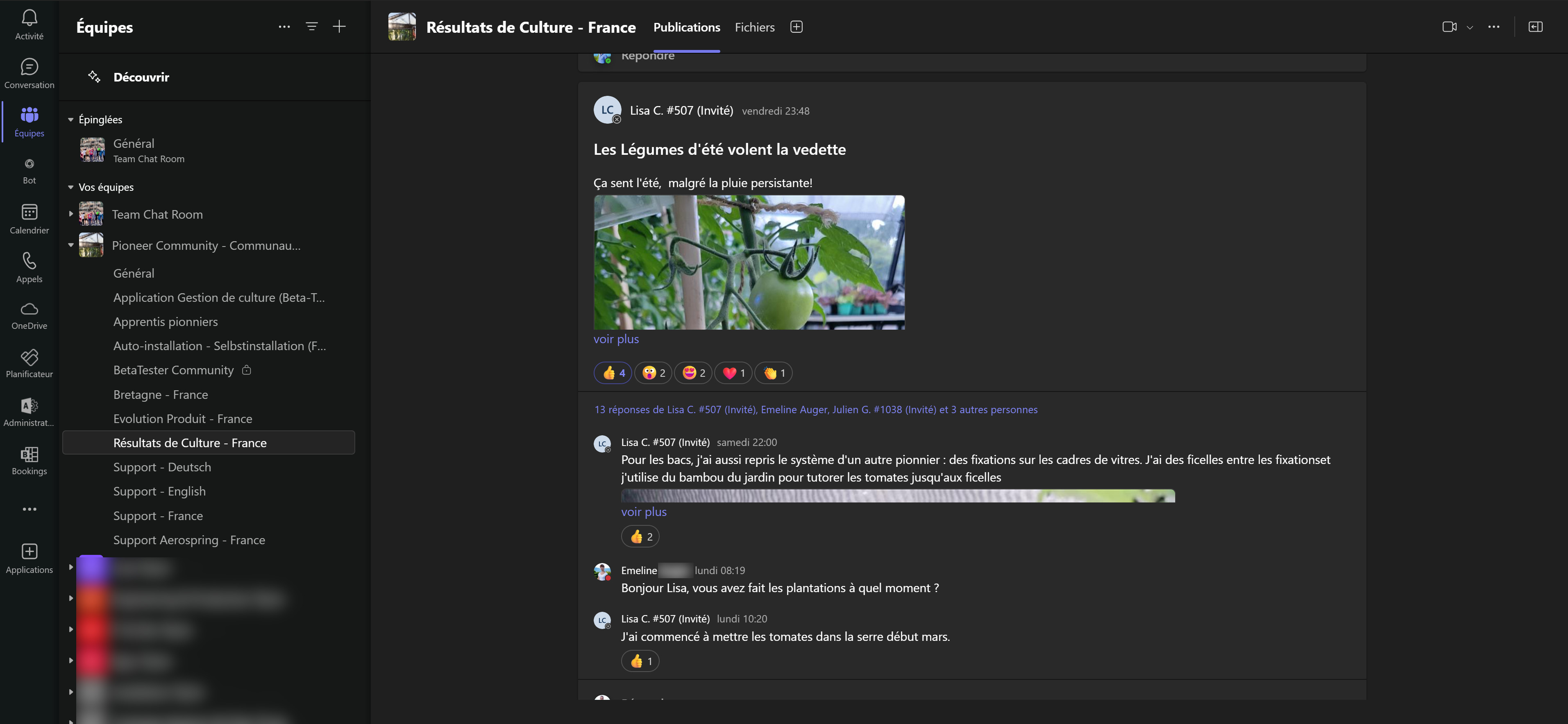
1. What is the Pioneers Community on Teams?
The Pioneers Community is the central tool for sharing, support and information gathering about aquaponics, bioponics or permaculture.
The whole team, our agronomists and above all the Pioneers are there to answer your questions and help you use your greenhouse or vertical garden.
You will find advice, articles, tutorials, photos, videos, etc.
You can also contribute by sharing your experience with other Pioneers!
2. How do I access the Community?
A private invitation with a connection link to the greenhouse will be sent to you some time after the greenhouse installation. You simply need to follow the instructions.
First loginYou will need to use a desktop or laptop computer to create the profile and join the Community.
After that, you can sync your mobile phone using the credentials you created.
WARNING! Make sure you remember this email address, it will be the only one you can use to log in to Myfood Teams
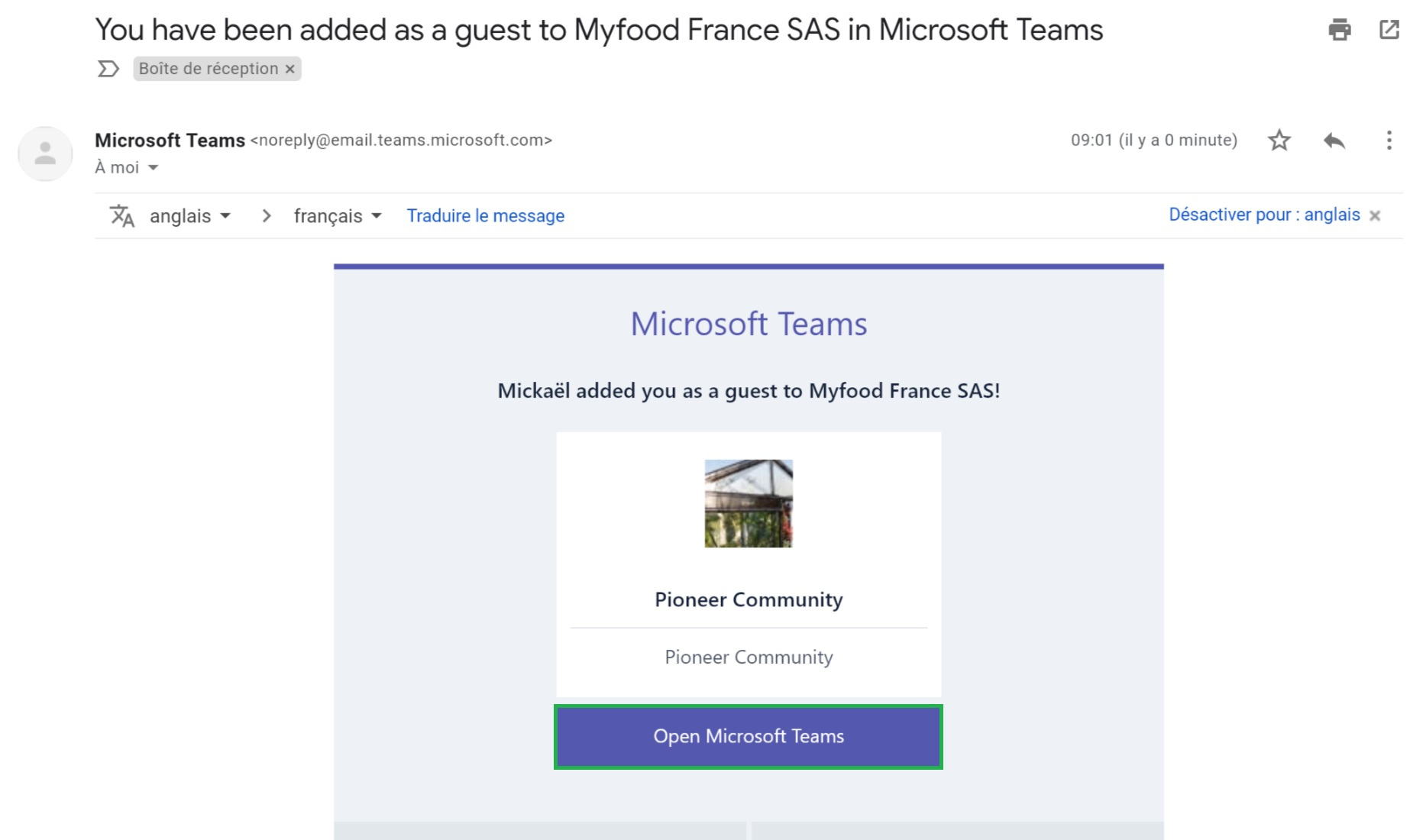
Receipt of the invitation email
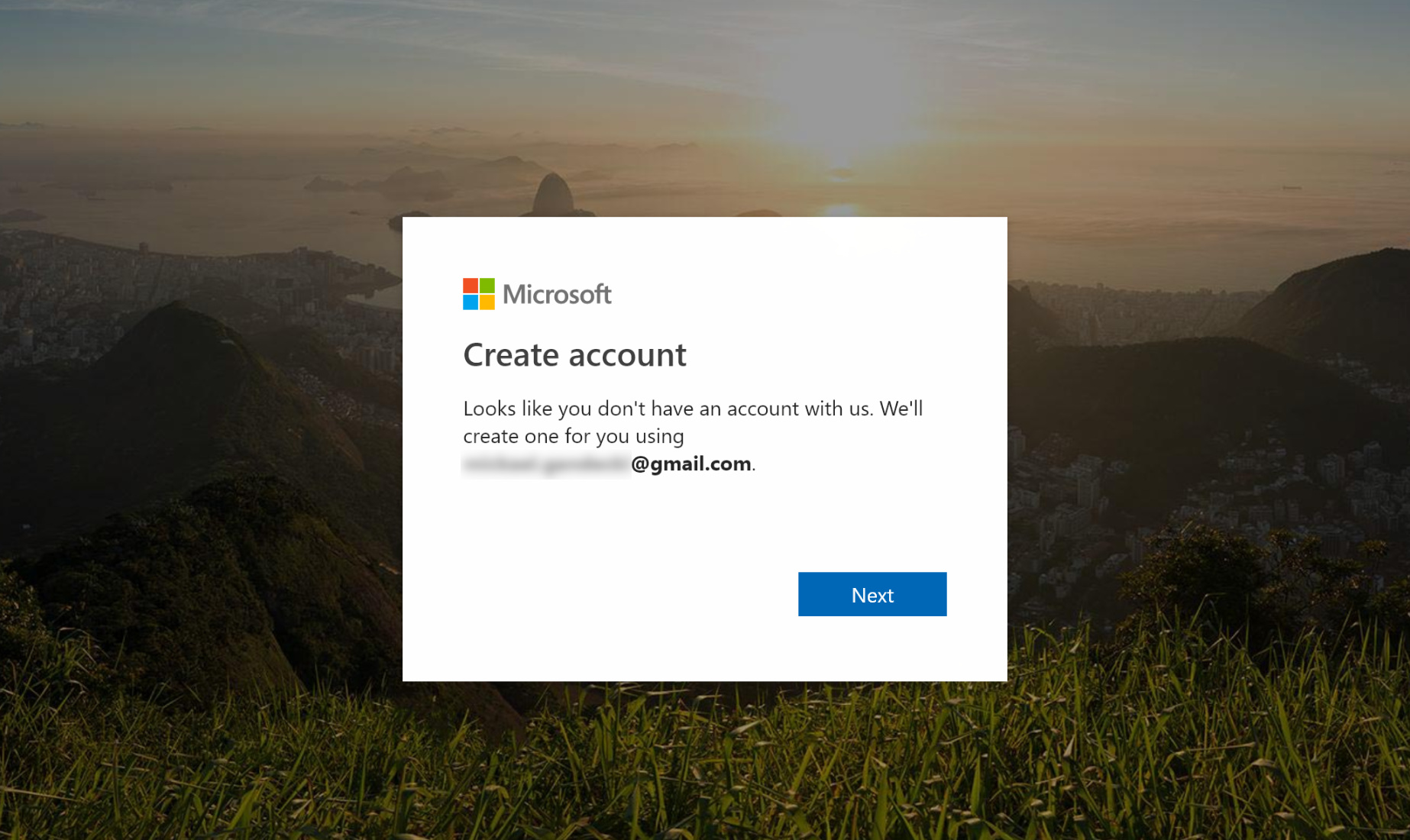
Account creation
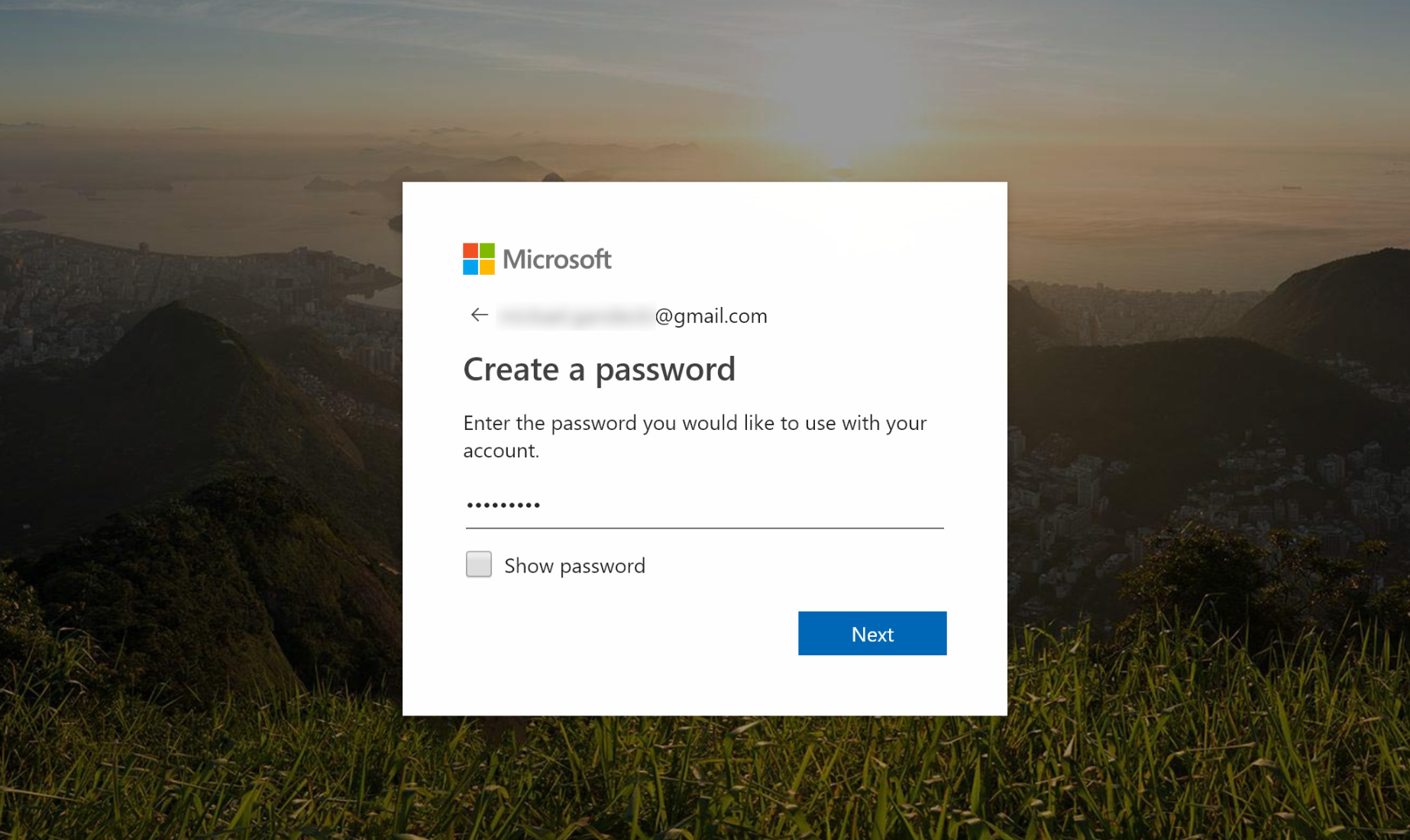
Creating a password for Teams
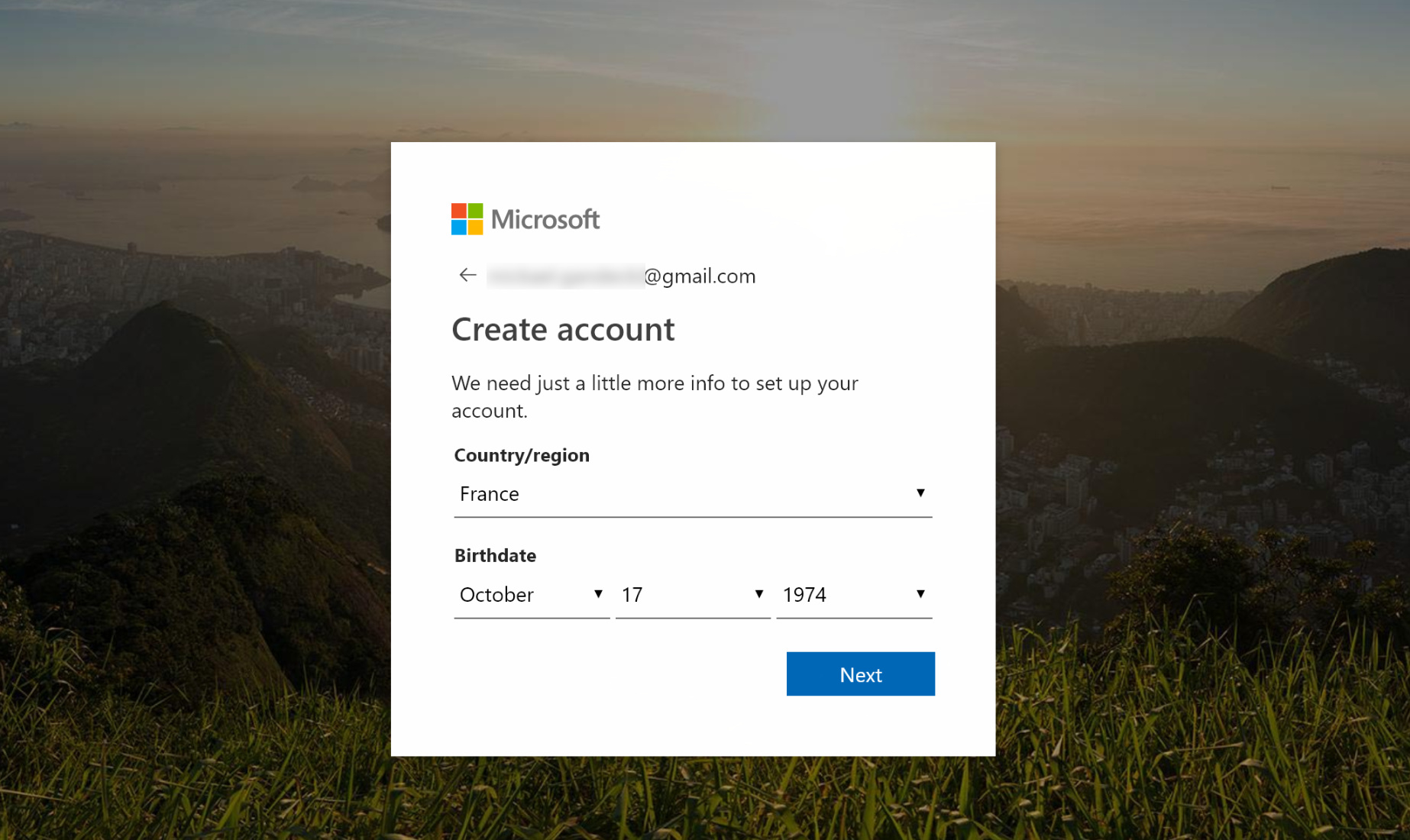
Entering useful information
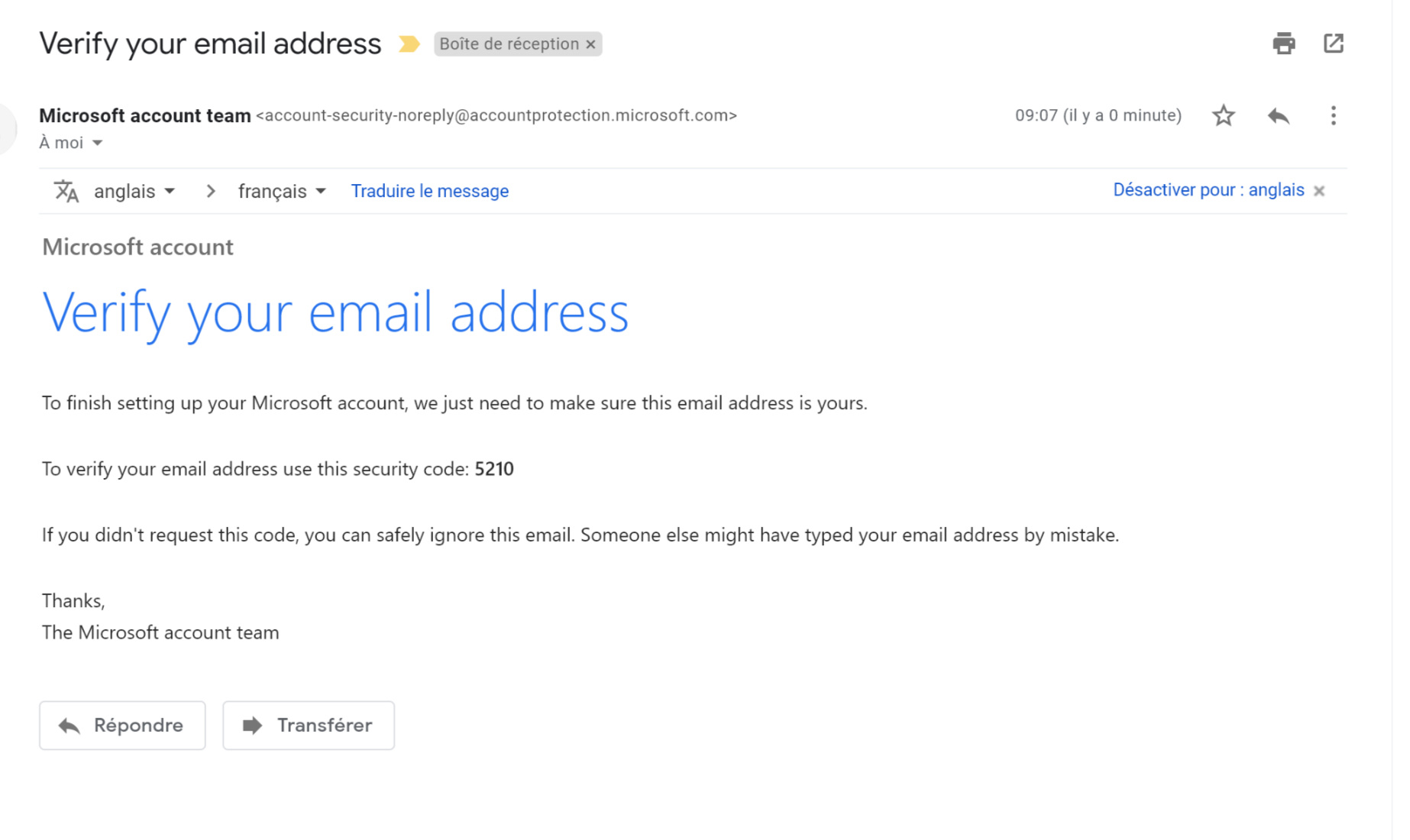
Retrieving the verification code
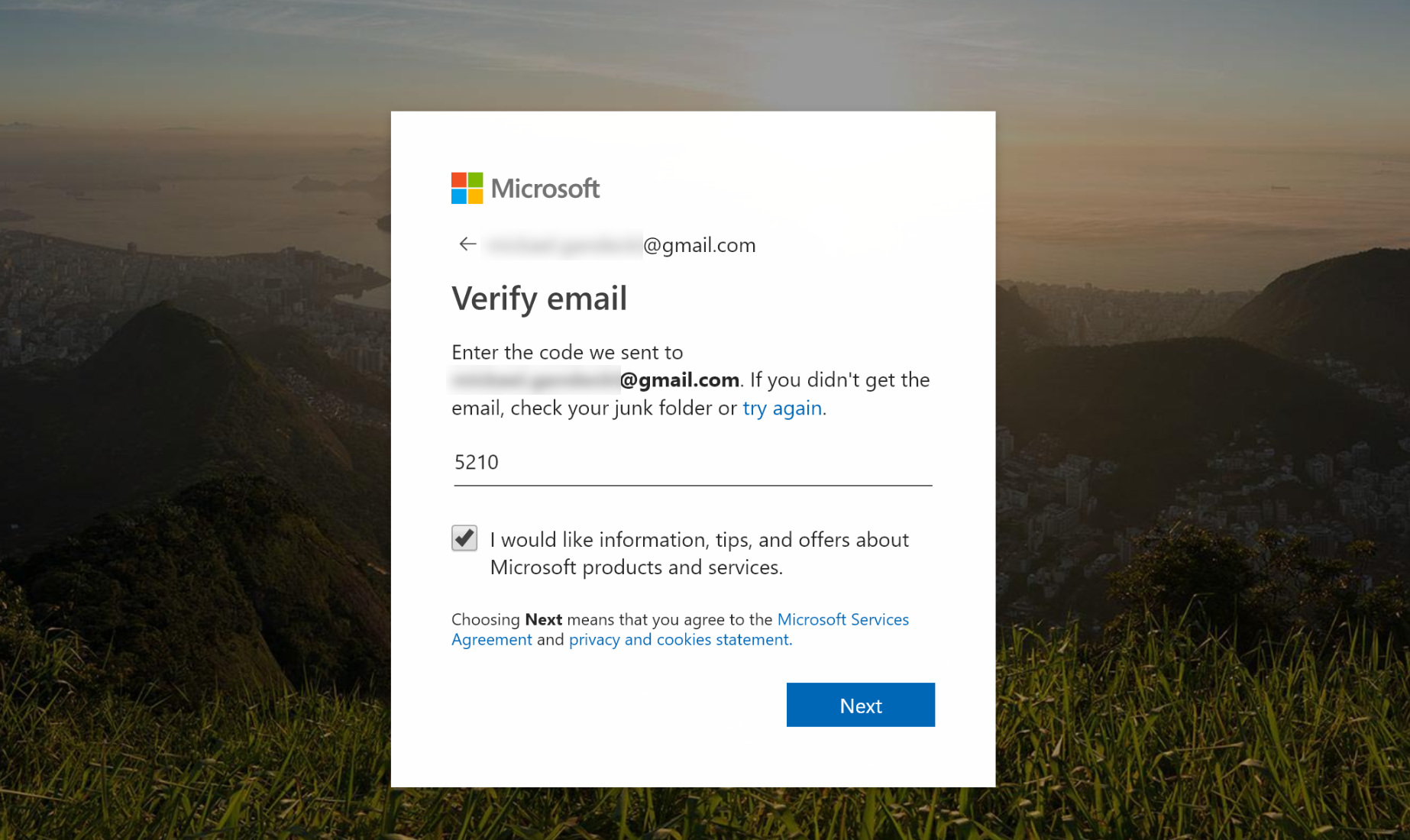
Enter the verification code
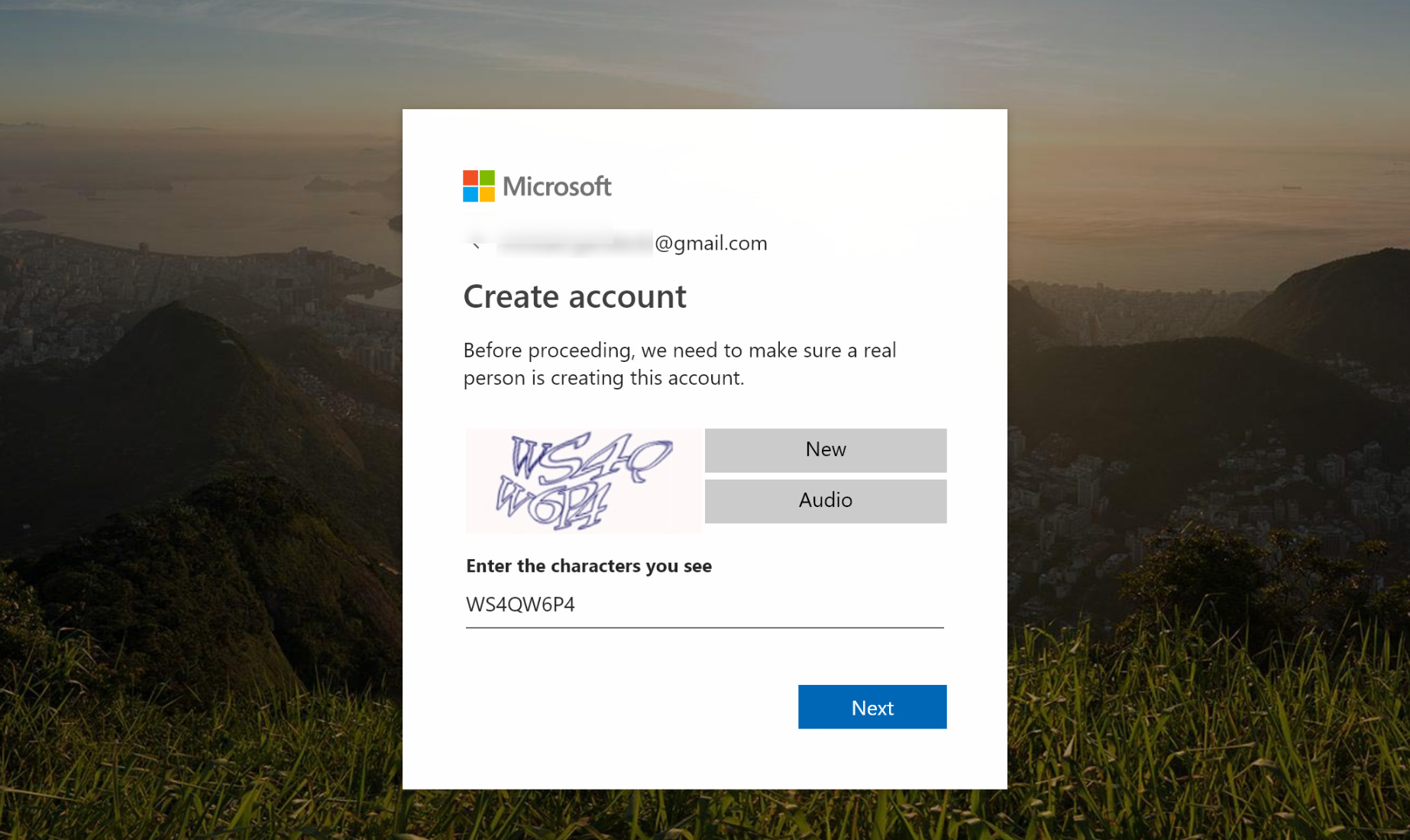
Account creation complete
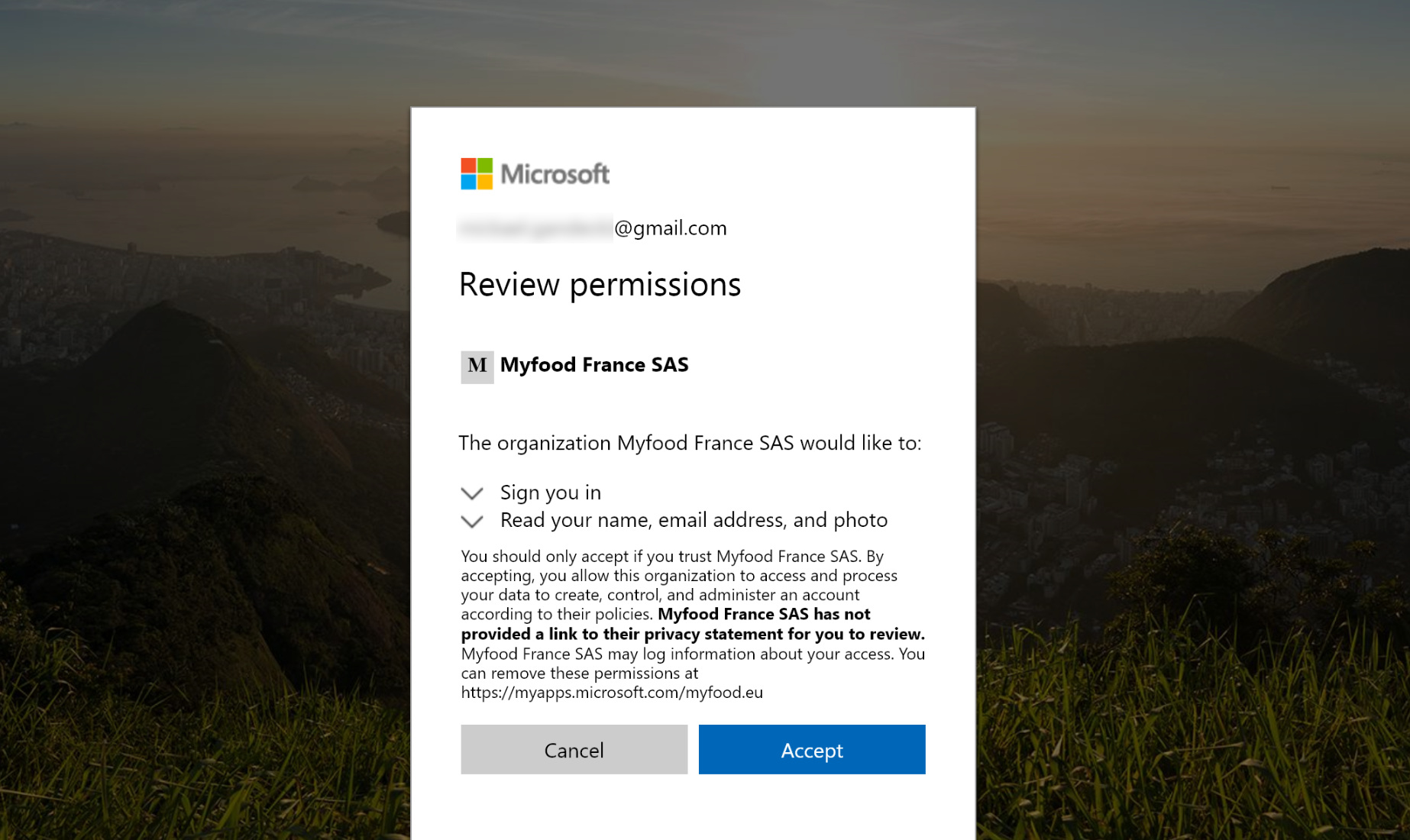
Confirming the addition to the group in Teams
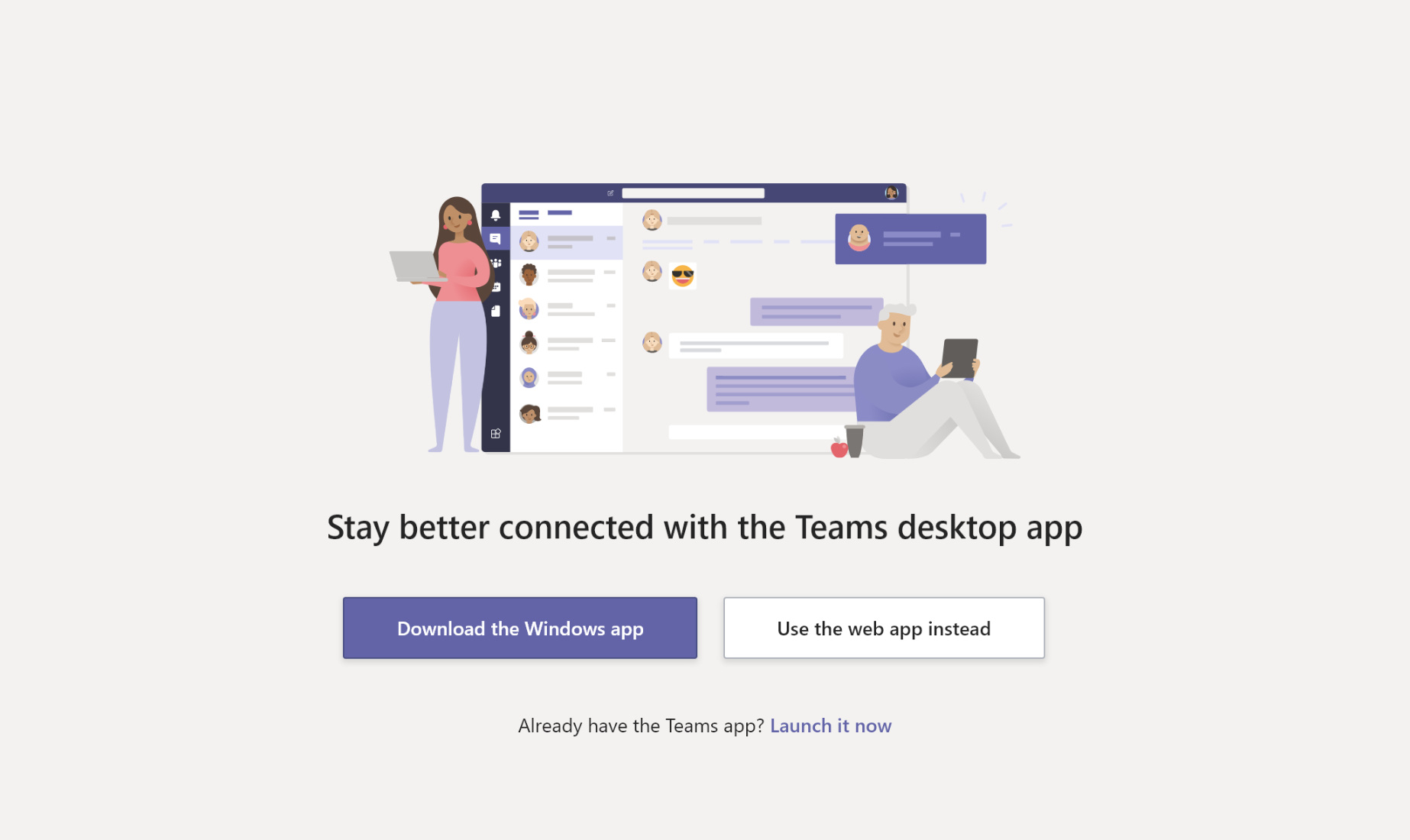
Download the Teams app
3. How do I use the Community?
- Ask your questions, with a photo if possible, to resolve a problem, ask a question, or report a deficiency on your plants in the Support category.
- Post photos or videos of your results in the Growing Results category.
- Share your improvement ideas in the Product Evolution category.
For more information about the platform, feel free to watch this video:
Welcome to Microsoft Teams
4. Managing notifications
You can fine-tune the notifications sent by the platform. Settings can be configured in the desktop application or on your phone.
Depending on your habits, you can receive emails or alerts based on the situation (new messages, replies, etc.).
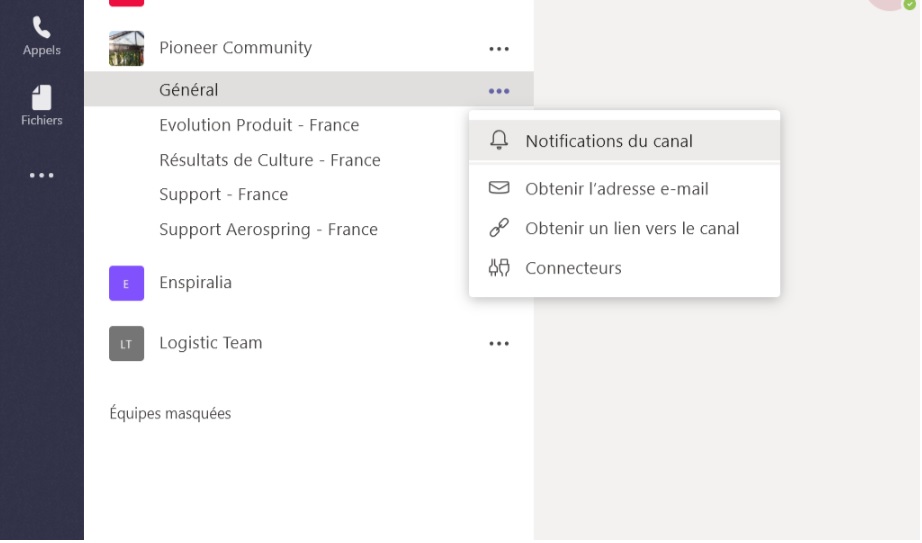
To make sure you are notified of new community messages, after configuring the channels, it is useful to configure the application notifications.
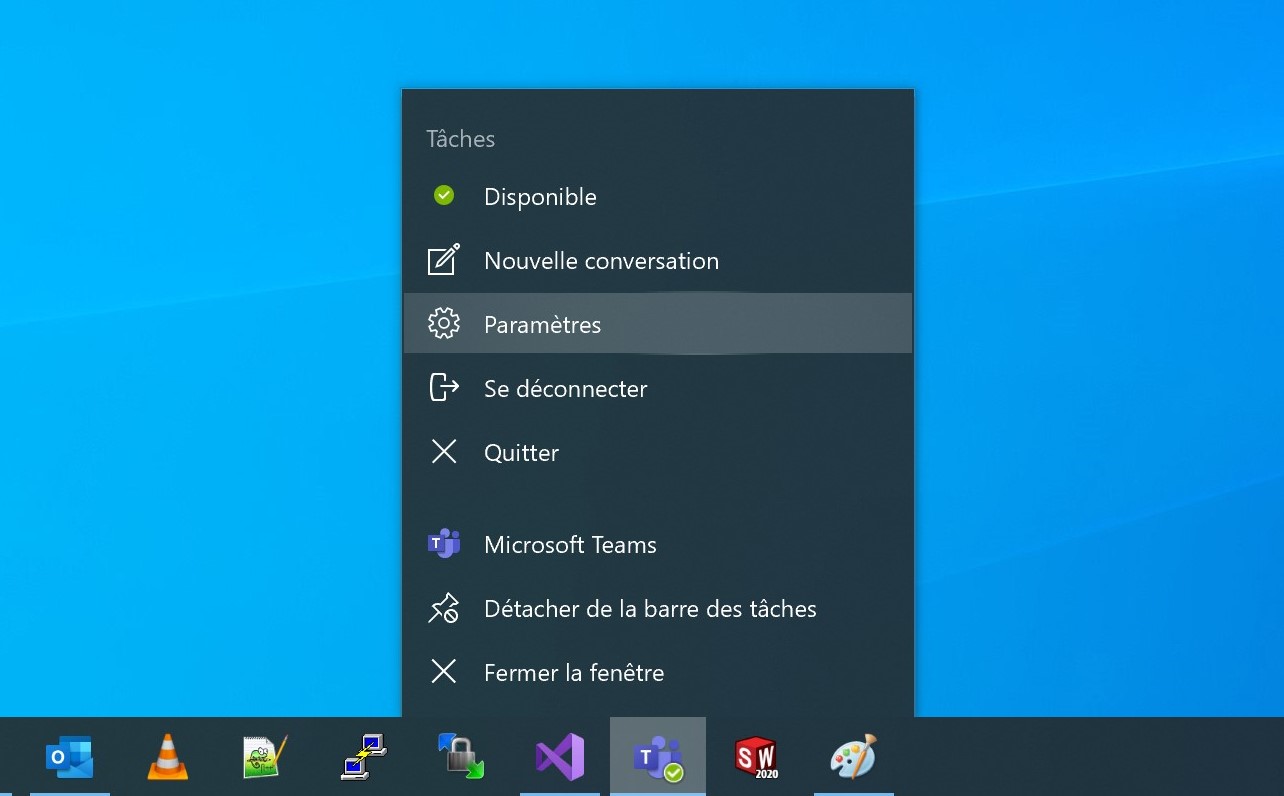
Right-click on the app icon, then select “Settings”
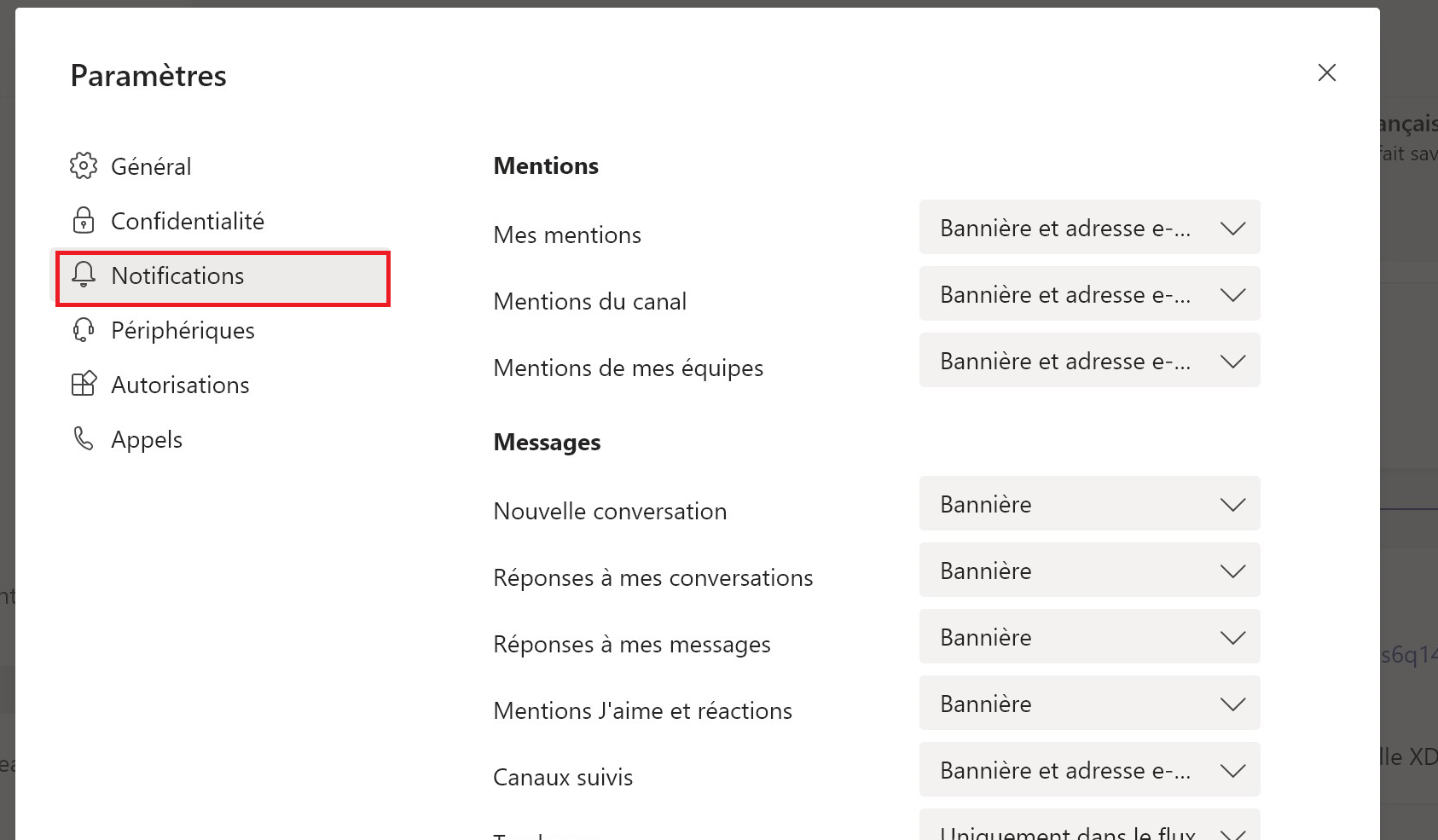
In the “Notifications” tab, you can choose to be alerted via a banner and/or an email.
5. You did not receive an invitation?
You can check your junk mail. Your invitation is sent to the address you gave us.
For the first login, it is recommended to use a desktop or laptop computer to create your user profile.
If you have any issues, send an email to [email protected].
Updated 3 months ago