
lapplication-myfoodapp
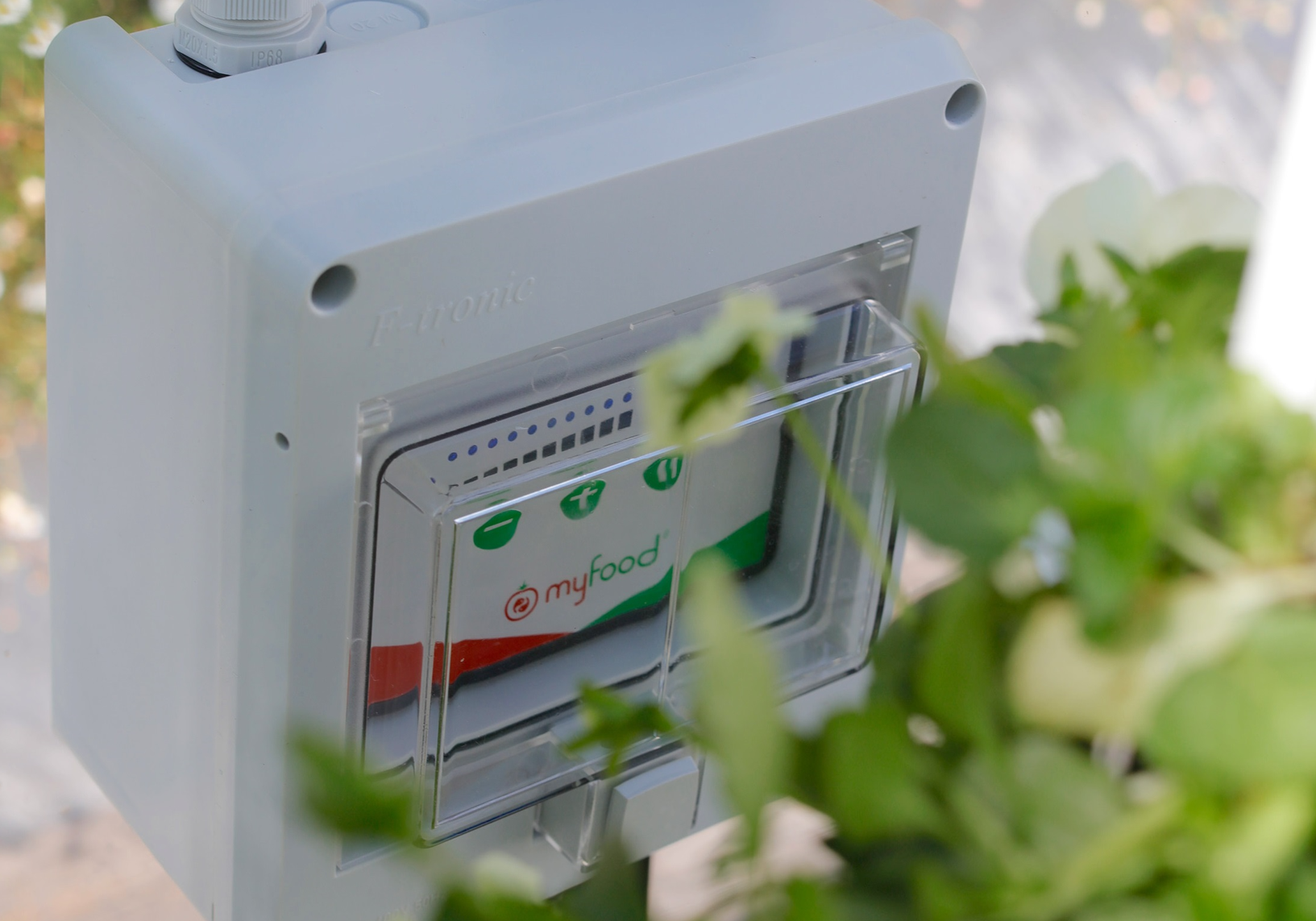
The Myfoodapp application is the program that collects sensor data from your connected greenhouse and sends it to our server.
If you have technical issues or questions, you can consult the page Power box or fill in this form: Support portal
1. Prerequisites
Using Myfoodapp requires a local connection to the greenhouse.
The greenhouse can be managed from a computer (Windows, Mac, Linux), a tablet (Android, iPad) or a smartphone (Android, iPhone, Windows Phone).
The electronic box must be powered on.
2. Connectivity mode
The connected greenhouse can manage sensor data transmission in three ways:
- By sending data via the Sigfox network when coverage is available (see Sigfox coverage)
- By connecting to an Ethernet cable run from the house or provided through a powerline communication device
- By connecting to a domestic WiFi network with a strong signal (plan for an outdoor repeater)
The most robust recommended method is to use the Sigfox network. This radio technology is deployed worldwide. It makes it possible to collect information without needing an Internet connection.
3. Local connection to the greenhouse
Around the greenhouse, an administration access point is available.
The default authentication key for this local network is sent to you by email.
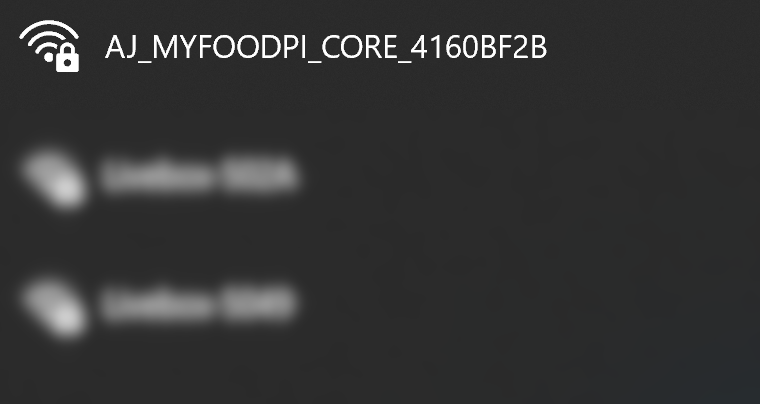
Administration access point for the connected greenhouse
From an Android phone or iPhone, disconnect mobile data.
Enter the address http://192.168.137.1:5000 in your web browser to access the greenhouse settings locally.
You will find the same data on the Myfoodhub application.
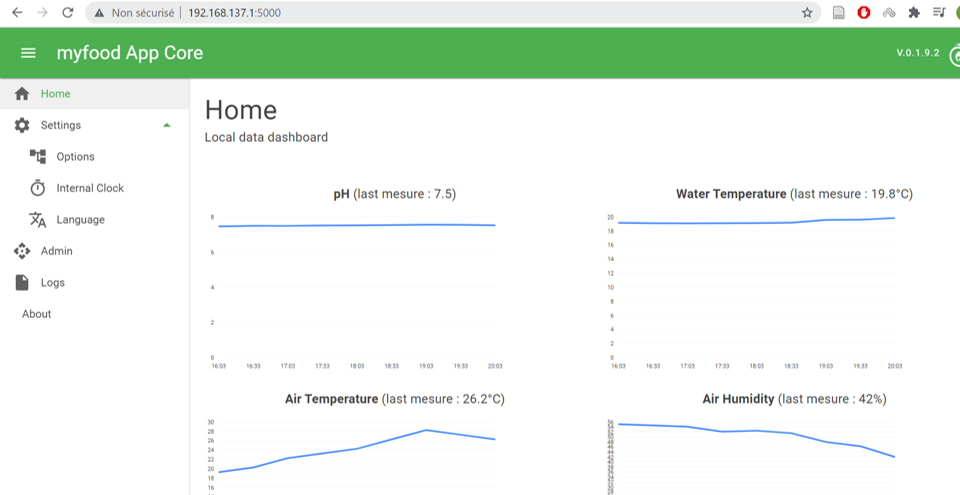
Preview of the local settings on your home page
4. Greenhouse configuration
Access to the greenhouse local settings mode is through a browser at: http://192.168.137.1:5000
In the event of maintenance or a support operation, we may ask you to work on this interface.
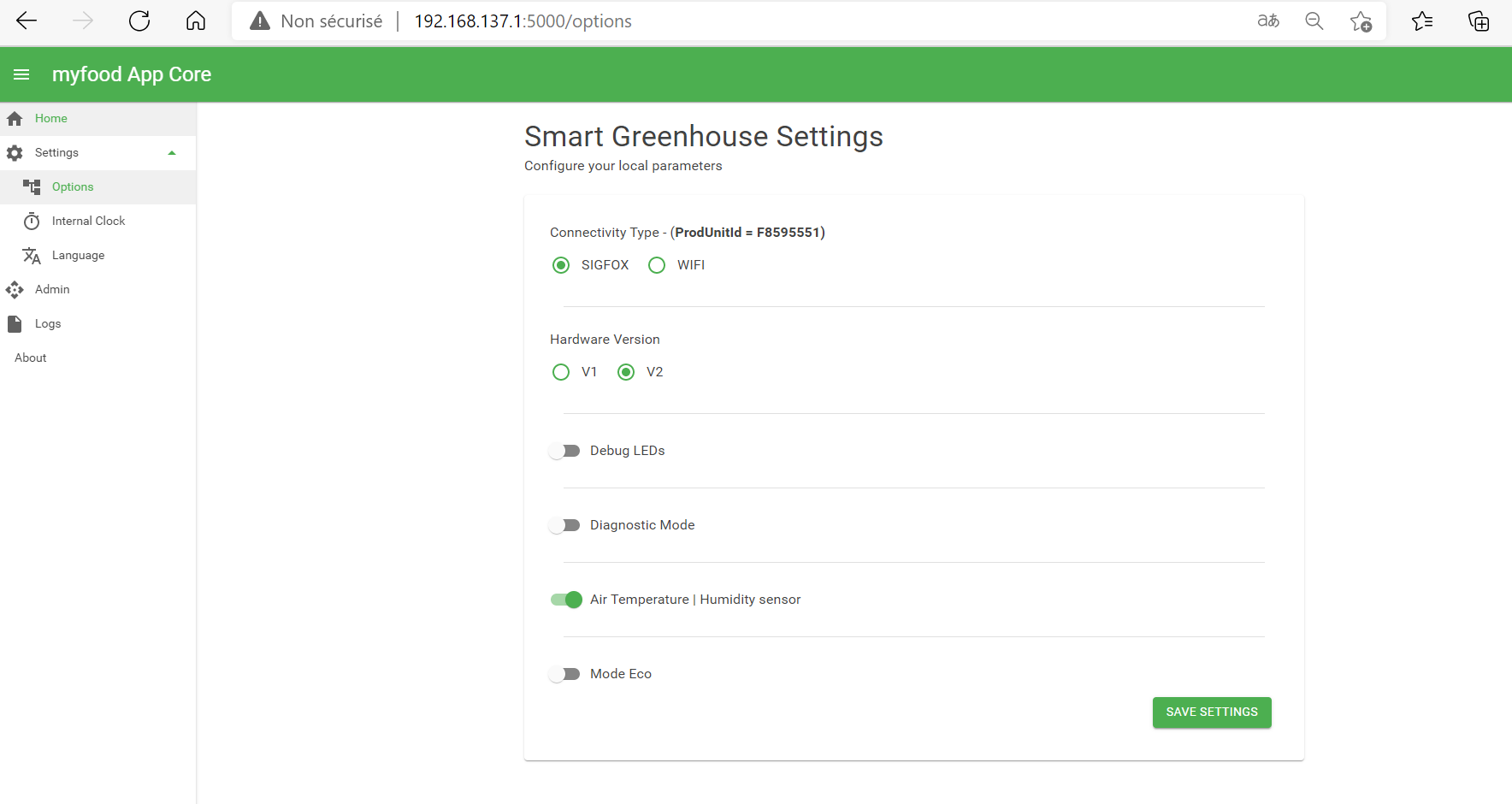
Configuration of greenhouse settings
Configuration settings:
Connectivity Type (Sigfox enabled by default): lets you switch connectivity from Sigfox to your domestic WiFi or Ethernet network
Hardware Version (v.2 by default): v.1 must be set for boxes delivered before 03/2019.
Debug LEDs (disabled by default): enables / disables blinking on the sensor acquisition boards during operation.
Diagnostic Mode (disabled by default): in the event of a fault, we will ask you to enable diagnostic mode to help us find the source of the problem.
Air Temperature | Humidity sensors (enabled by default): enables / disables the greenhouse temperature and humidity sensors.
Eco Mode: the greenhouse WiFi network disappears after 30 minutes of inactivity. Restart the power box to make it reappear.
NoteWhen changing connectivity to WiFi / Ethernet, you will need to update your greenhouse identifier, "Hub ProductionId", in the Myfoodhub application in order to retrieve your data.
Each time you change these settings, click "Save Settings".
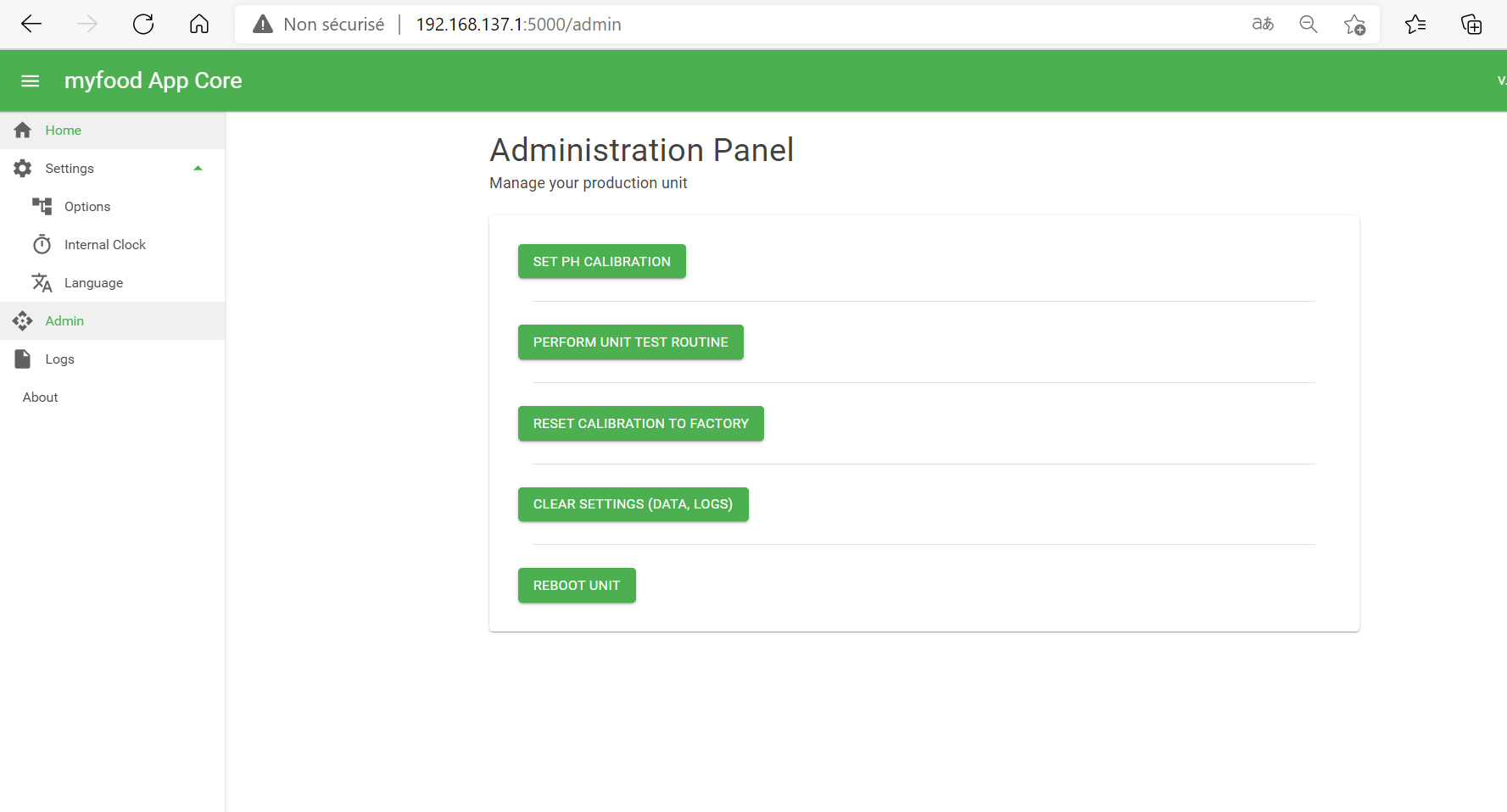
Local technical administration of the greenhouse on the http://192.168.137.1:5000 interface
Setting the internal clock: in the Settings>Internal Clock tab, set the current time.
Administration actions: in the Settings>Admin tab
Set pH Calibration: to recalibrate the pH probe, remove it from the water, clean it and place it in a standard solution at 7, then click this button.
Perform Unit Test Routine: perform a complete measurement and connectivity test.
Reset Calibration to Factory: erase the data and return the sensors to their factory state.
Clear Settings (Data, Logs): erase all measurements (no impact on measurements collected on the Myfoodhub platform).
Reboot Unit: restart the application.
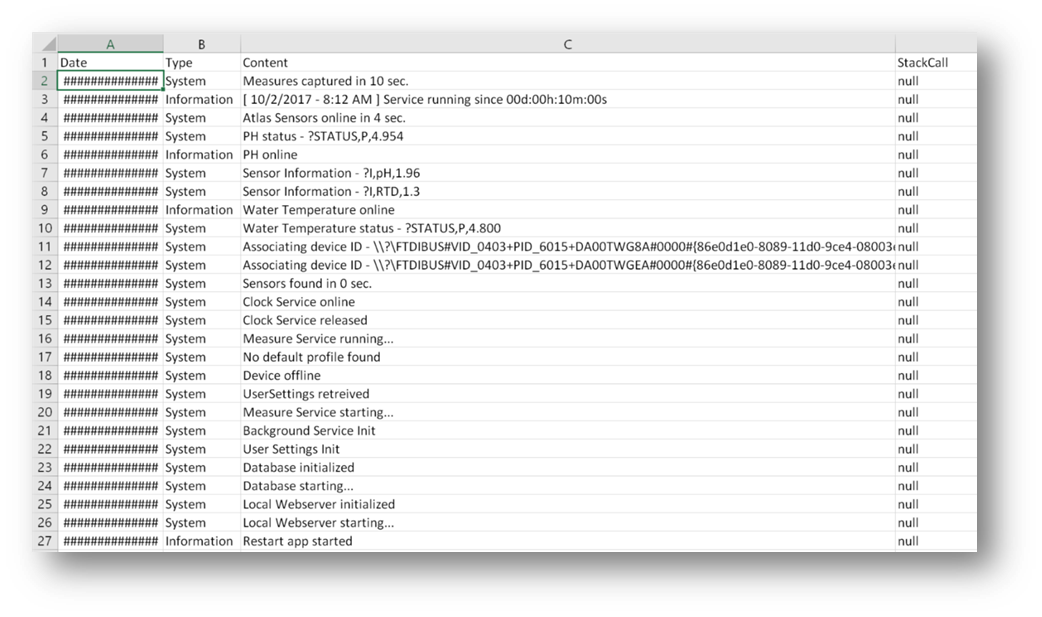
Example of a log file when the program starts
Downloading Logs:
Go to the Logs tab and click Download Logs to extract the data.
5. Updating the application
Find out how to update your micro-SD card by consulting the page Operation: Flash an update of the Myfoodapp application onto a micro-SD card.
If you have flashed a version currently under development (earlier than v.0.1.9.2), we invite you to download and install the latest version available below.
6. WiFi pairing via the Raspberry Pi interface
If the geographic location of your greenhouse is not covered by Sigfox or your connection is insufficient, it is possible to pair it with your domestic WiFi network.
To benefit from the WiFi antenna to connect to your measurement box, you can request it from our customer service.
It is necessary to install the latest update by following the instructions to Flash a micro-SD card.
After connecting the antenna, connect to the local interface using your browser http://192.168.137.1:5000.
In the Options tab, select WiFi and confirm by clicking "Save Settings".
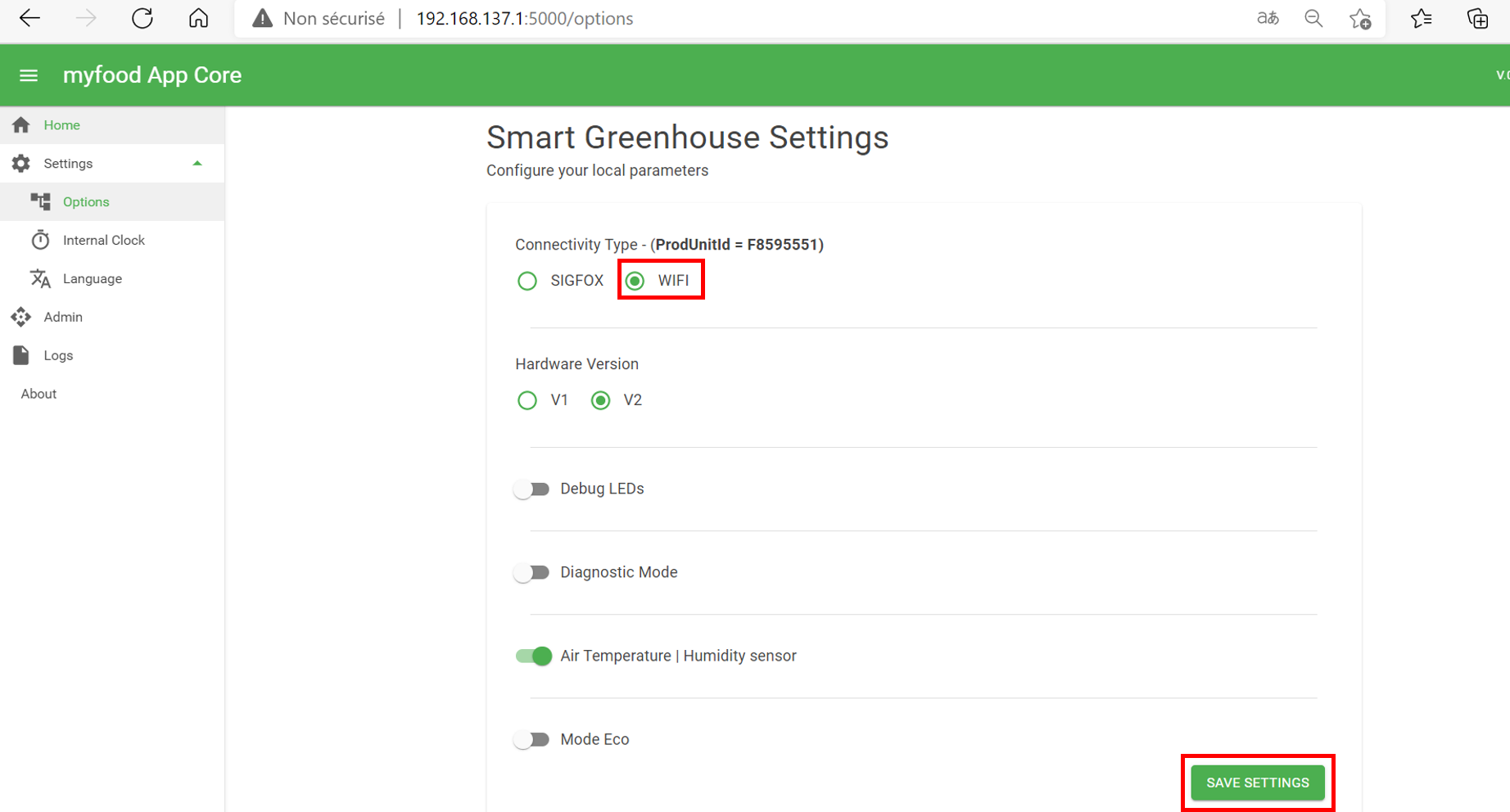
WiFi mode configuration on the local interface
Then go to the page http://192.168.137.1:8080/ and sign in with the credentials sent by email.
In the Client WiFi tab, find a WiFi access point or a repeater for pairing. Enter your WiFi password and click Add.
Finally, restart the power box to see the greenhouse on the domestic local network.
Access to your greenhouse local interface is now via this address http://myfoodpi.local.
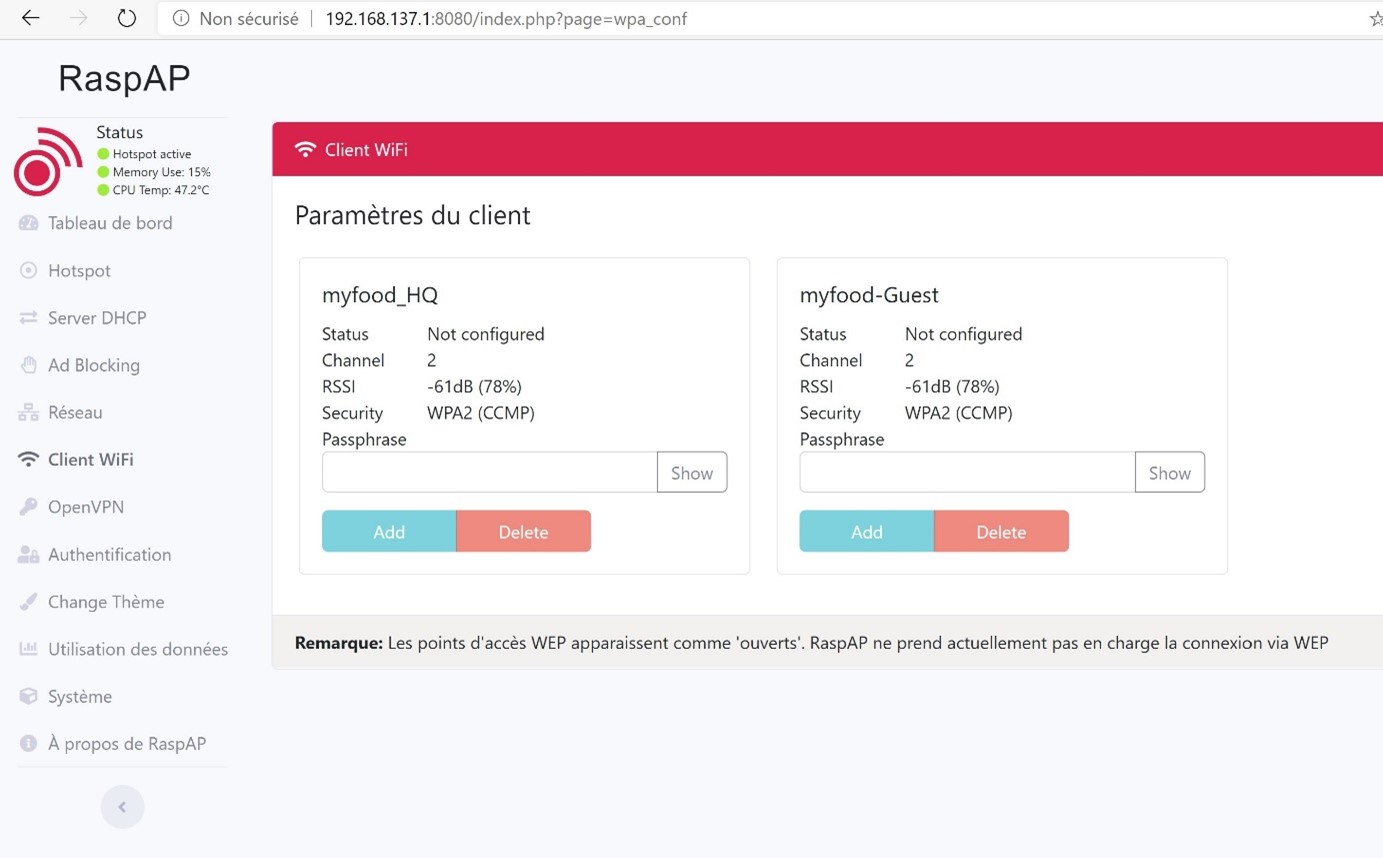
WiFi pairing of the greenhouse using your Raspberry Pi interface
To cancel WiFi pairing and regain access to the greenhouse WiFi network and its interfaces http://192.168.137.1:5000 and http://192.168.137.1:8080/, you have two options:
- Disconnect the WiFi antenna inside the measurement box. Power off the box during the operation.
- Disconnect your internet box from your home while you carry out the operations in the greenhouse on the administration interfaces.