Access procedure for the Myfood Microsoft Teams Community
1. Understanding how it works
When you join the Myfood Teams Community, you are invited as a guest user (Guest) to our Microsoft 365 environment. This invitation is linked to a specific email address and a specific Microsoft account.
1.1. Why do sign-in errors occur?
The most common error is:
This error means that you are using a different Microsoft account from the one with which you accepted the original invitation.
KEY POINT: The same email address can be associated with several distinct Microsoft accounts (personal account, work account, etc.). Only the account used when accepting the invitation is authorized.
1.2. Types of Microsoft accounts
| Account type | Description |
|---|---|
| Personal account | Outlook.com, Hotmail, Live account created by you for personal use. |
| Work account (M365) | Account provided by your employer through Microsoft 365 / Office 365 (e.g. [email protected]). |
| Linked external account | Microsoft account created from a non-Microsoft address (Gmail, Yahoo, etc.) when accepting an invitation. |
2. Invitation process – Step-by-step guide
When you receive an invitation to join the Myfood Teams Community, follow these steps carefully.
2.1. Steps common to all cases
-
Receive the invitation email: You receive an email from Microsoft with the subject “You have been invited to access apps within the Myfood organization”. Check your spam folder if you cannot find it.
-
Use a computer
The first sign-in must be done from a desktop or laptop computer, never from a mobile phone.
After that, you can sync your mobile phone using the credentials created.
WARNING! Remember this email address carefully, it will be the only one you can use to sign in to Myfood Teams
-
Open a private browsing window: To avoid conflicts with existing sessions, use a private browsing window:
- Chrome/Edge:
Ctrl+Maj+N - Firefox:
Ctrl+Maj+P
- Chrome/Edge:
-
Copy the HTTPS link from the “Accept invitation” button: In the email, copy the link from the acceptance button and paste it into your browser. You will be redirected to the Microsoft sign-in page.
Tip: Make sure you note the email address used for this invitation. This exact address is the one you must use for all future sign-ins.
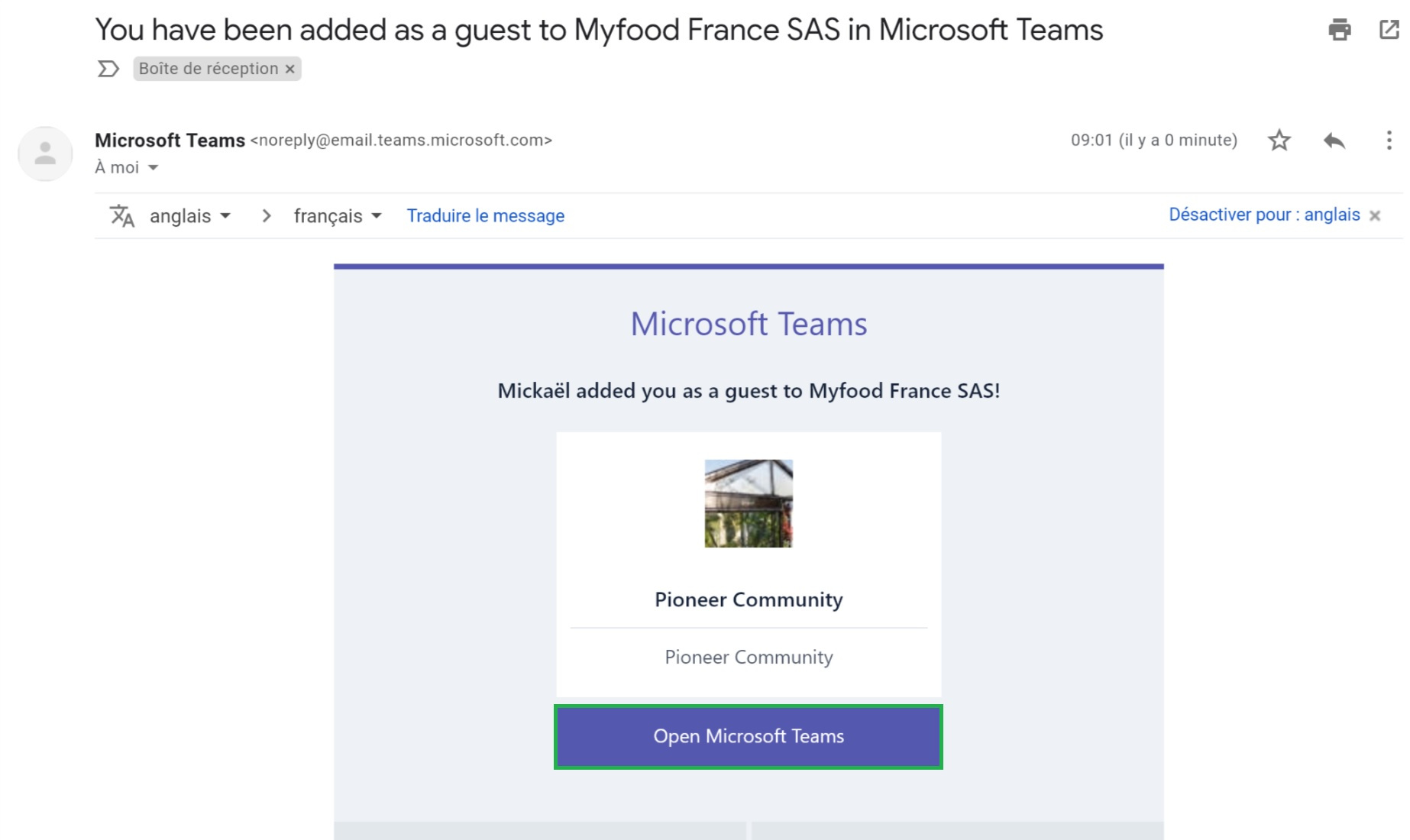
Réception du mail d'invitation
2.2. CASE 1: Your email address is already linked to a Microsoft account
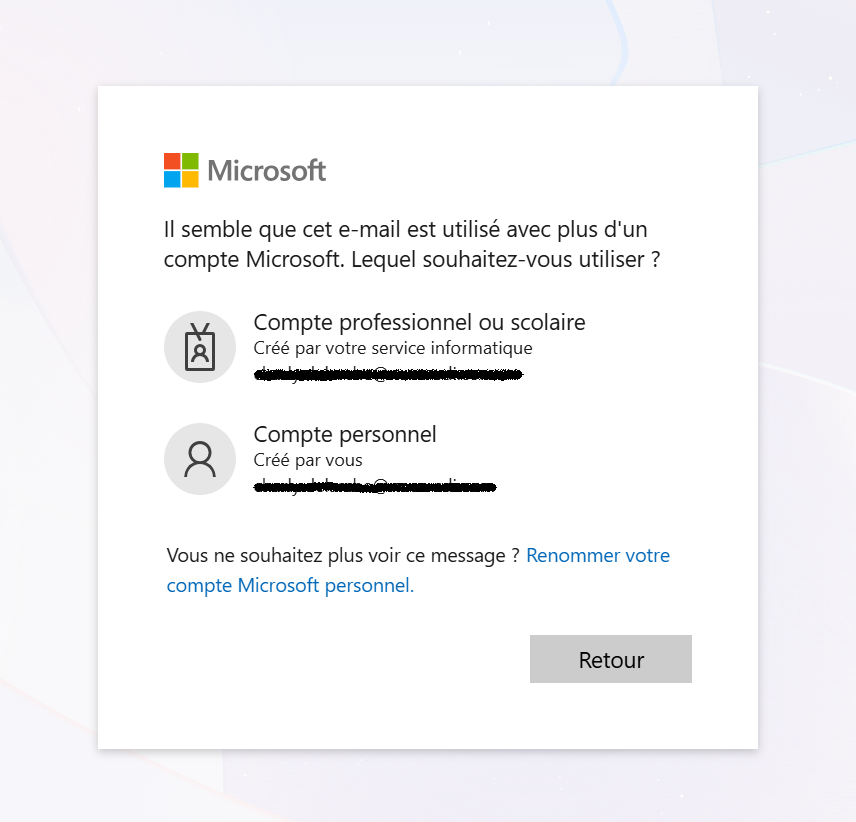
This case applies if your email address is already associated with a Microsoft account (personal Outlook/Hotmail/Live account, work M365 account, or an external account already created).
How do you recognize it?
- Microsoft asks directly for your password (without offering to create an account)
- You may see a screen asking you to choose between “Work or school account” and “Personal account”
Procedure to follow
-
Enter your email address: Enter exactly the email address that received the invitation.
-
Choose the account type (if prompted): If Microsoft asks you to choose between several account types, select the one you want to use for Myfood Teams. Remember this choice, because you will need to repeat it every time you sign in.
-
Enter your password: Enter the password associated with the selected account.
-
Accept the terms: Read and accept the terms of use of the Myfood organization.
-
Access Teams: You are now a member of the Myfood Teams Community!
WARNING: If you have several Microsoft accounts associated with the same email address (for example a personal account and a work account), the choice made at this step permanently determines which account is authorized. You will not be able to change the account type later without requesting a new invitation.

2.3. CASE 2: Your email address is not yet linked to a Microsoft account
This case applies if your email address (Gmail, Yahoo, Orange, non-M365 work address, etc.) has never been used with Microsoft.
How do you recognize it?
- Microsoft offers to “Create account”
- You are redirected to a sign-up form
Procedure to follow
-
Enter your email address: Enter exactly the email address that received the invitation.
-
Click “Create account”: Microsoft will create a Microsoft account linked to your existing email address.
-
Create a password: Choose a strong password (at least 8 characters, with uppercase letters, lowercase letters, numbers and symbols). This password is specific to Microsoft; it may be different from your usual email password.
-
Check your email: Microsoft sends a verification code to your email address. Check your inbox (and spam folder) to retrieve this code.
-
Enter the verification code: Enter the code you received to validate the creation of your account.
-
Complete your profile (optional): Microsoft may ask you for additional information (name, country, date of birth). This information can be changed later.
-
Accept the terms: Read and accept the terms of use of the Myfood organization.
-
Access Teams: Your account has been created and you are now a member of the Myfood Teams Community!
Tip: Keep your Microsoft credentials safe (email address + password created). These are the credentials you will use for all your future sign-ins to Myfood Teams.
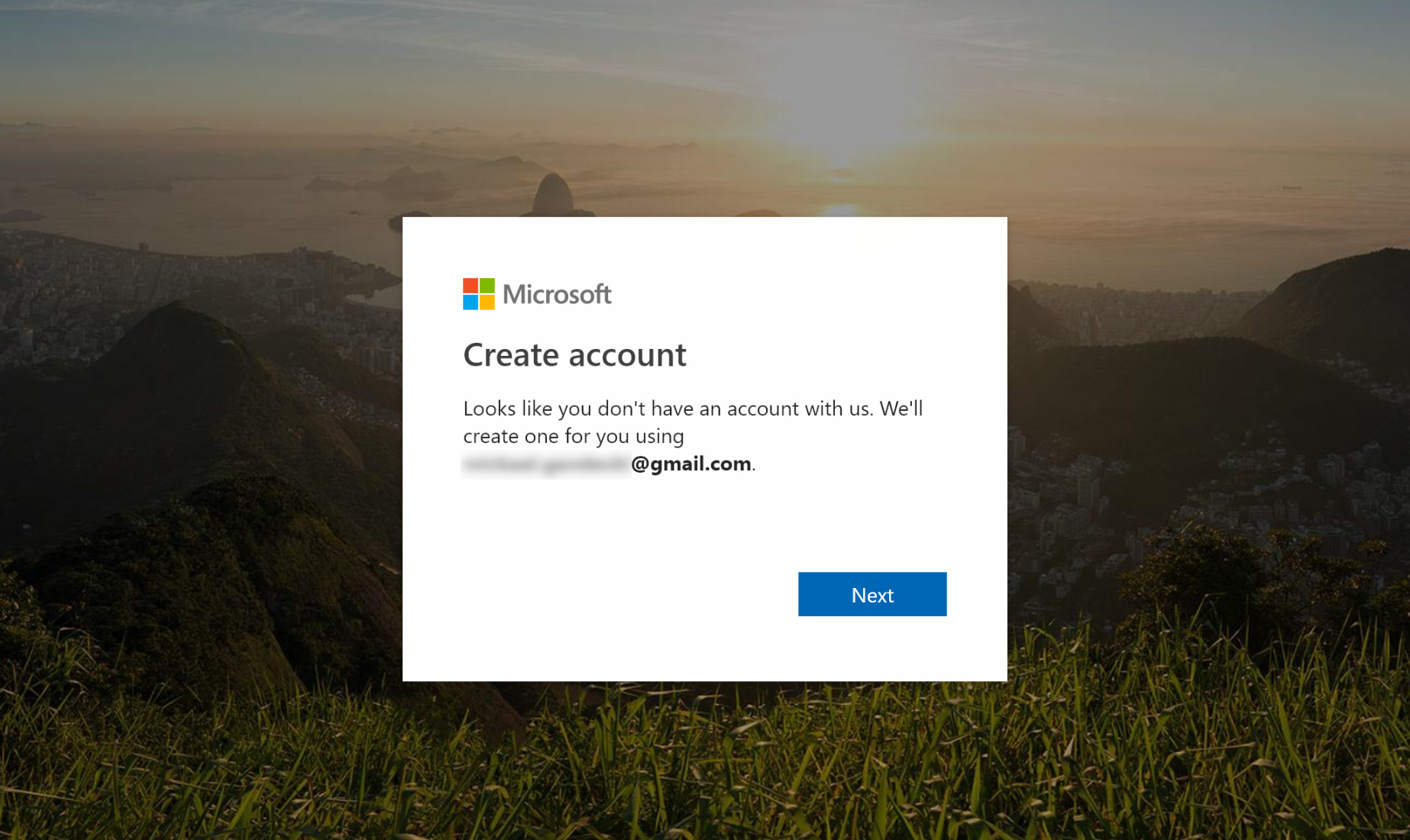
Création du compte
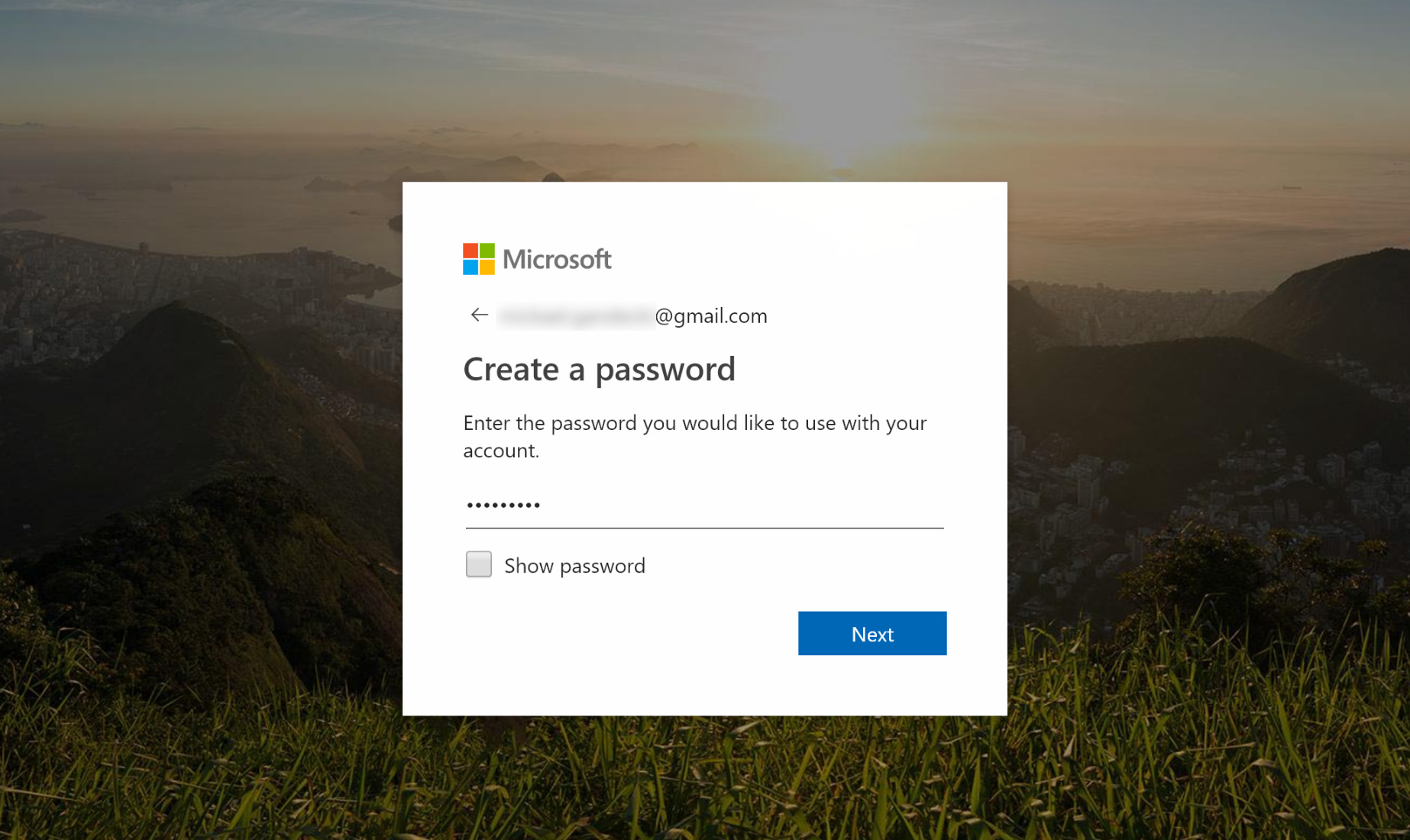
Création d'un mot de passe pour le nouveau compte Microsoft
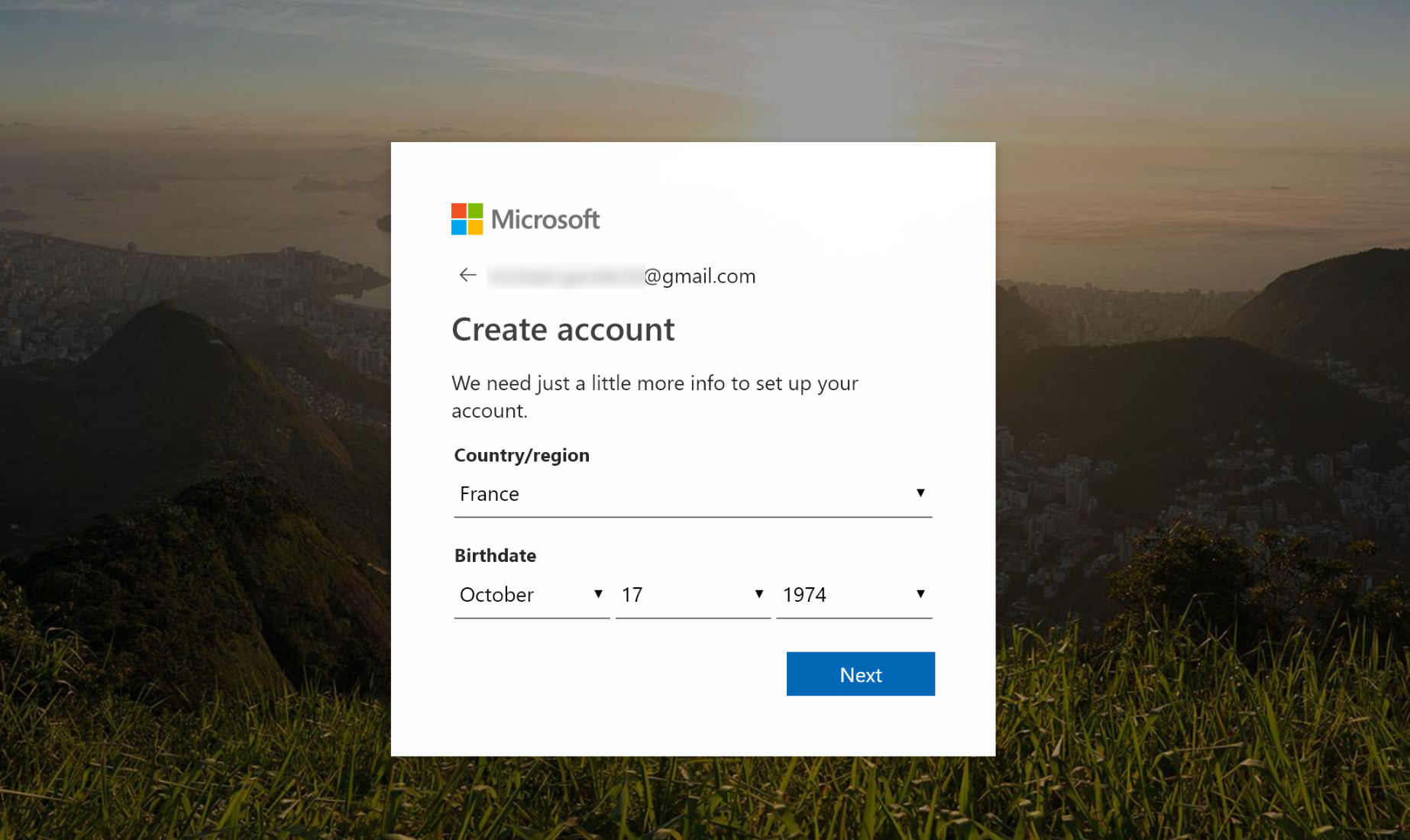
Saisie d'information optionnelle
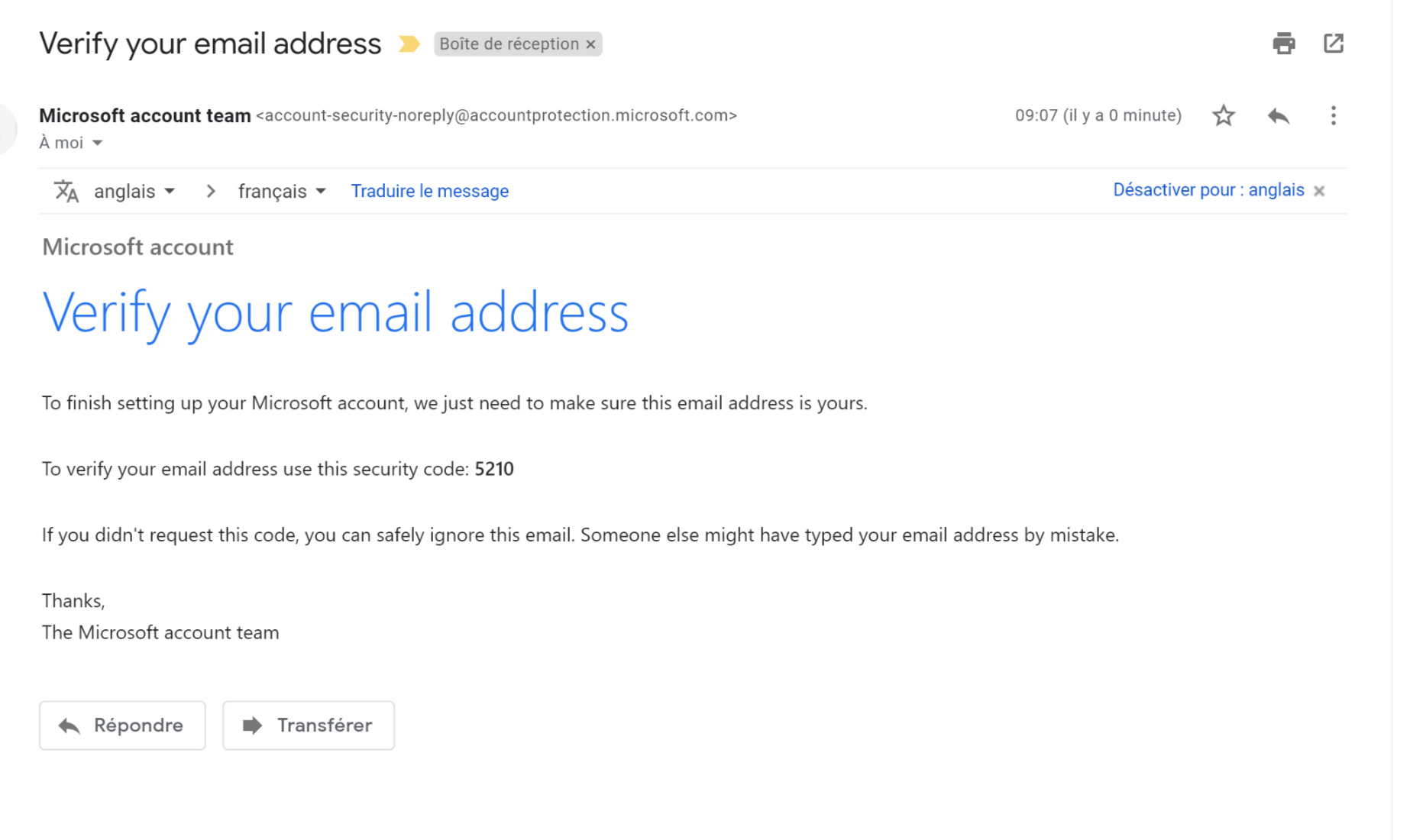
Réception et saisie du code de vérification
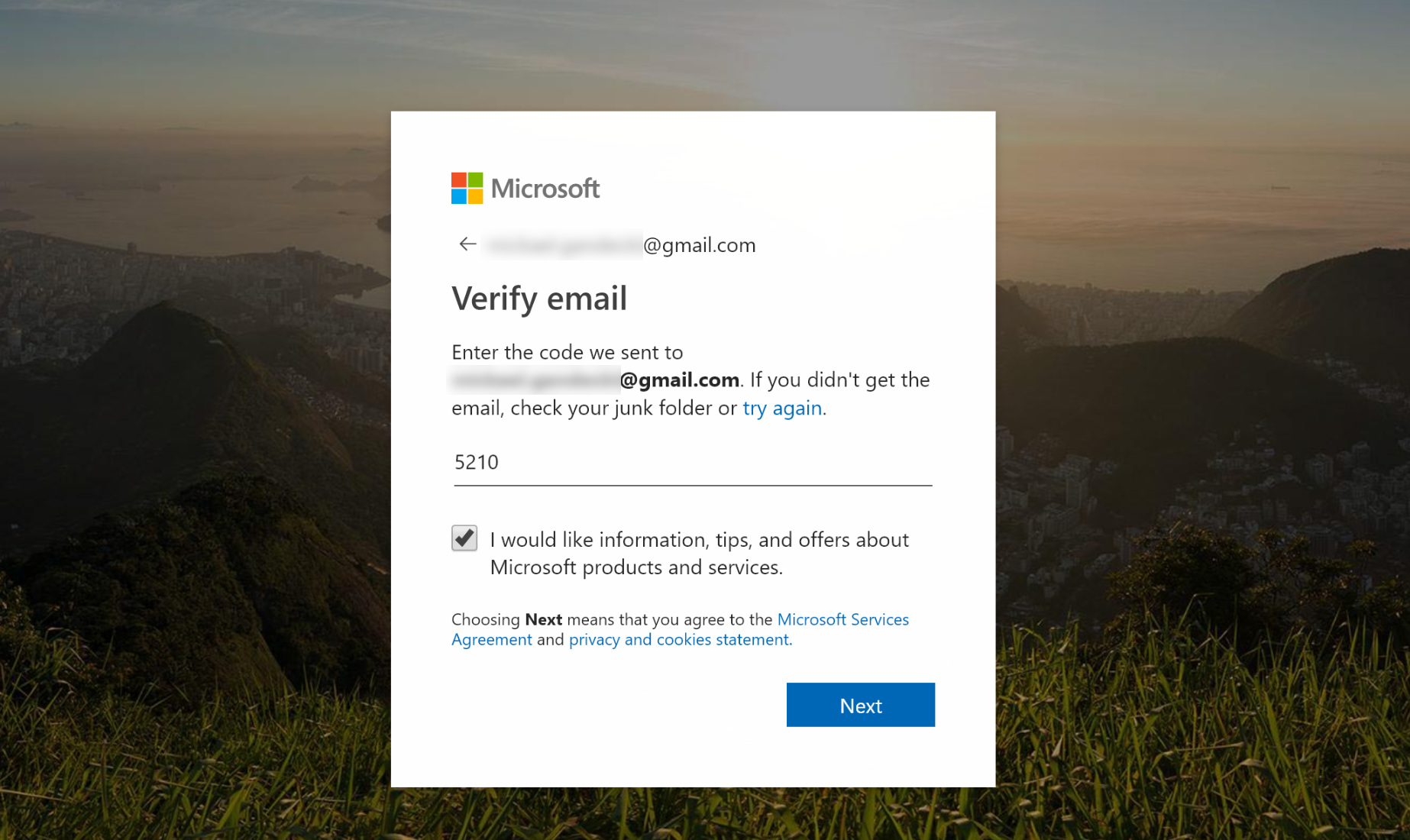
Saisie du code de vérification
3. Signing in to the Myfood Teams Community every day
Once your invitation has been accepted, follow these best practices to sign in without errors.
3.1. Golden rule
Use ALWAYS the same combination: email address + account type + password as when you accepted the original invitation.
3.2. Signing in through the web browser
-
Access Teams: Open your browser and go to https://teams.microsoft.com
-
Enter your email address: Enter the email address used for the invitation.
-
Select the correct account type: If Microsoft gives you a choice, select the same account type as when you accepted the invitation (personal or work).
-
Enter your password: Enter the password associated with this Microsoft account.
-
Select the Myfood organization: If you belong to several organizations, select “Myfood” from the list.
Tip: If you have a problem, use a private browsing window to avoid conflicts with other Microsoft sessions.
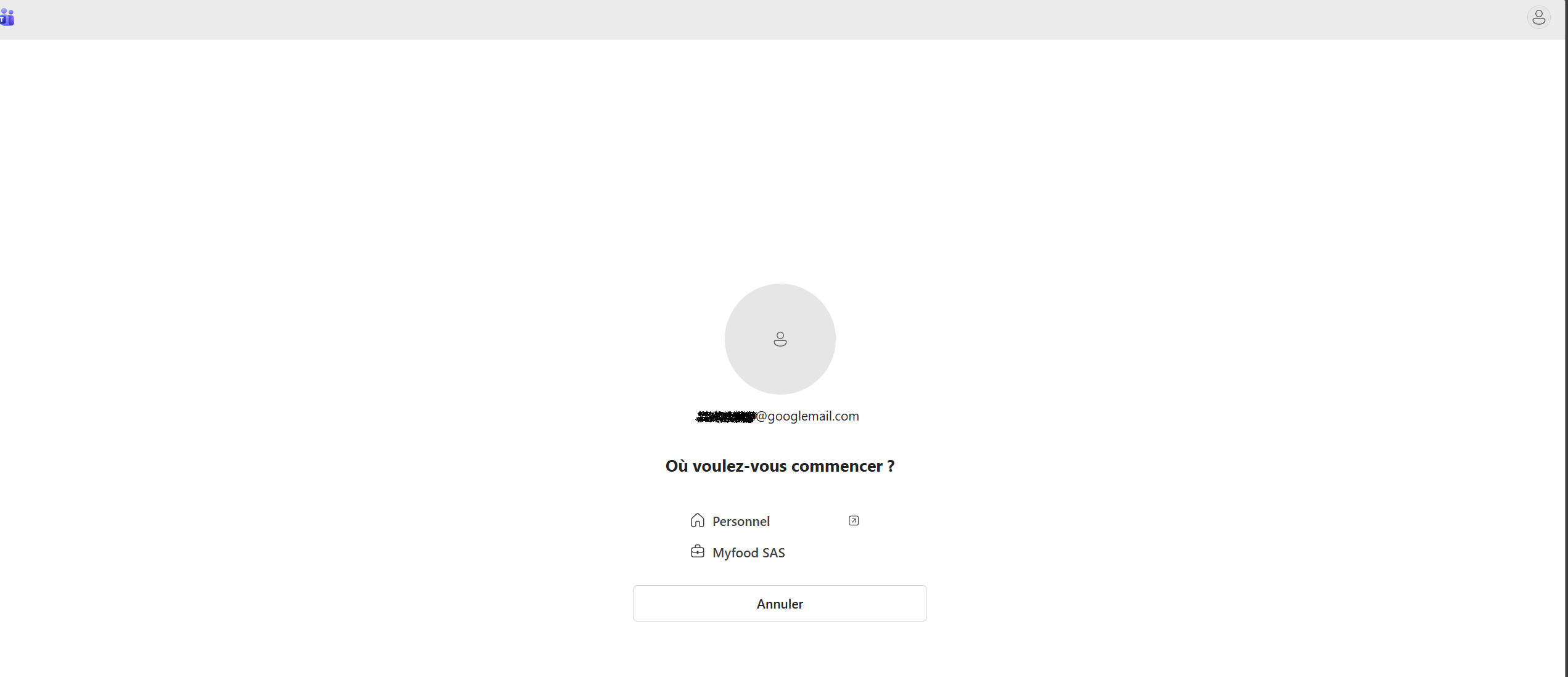
Sélection de l'organisation Myfood
3.3. Signing in through the Teams Windows/Mac app
-
Launch the Teams app: Open Microsoft Teams from your Start menu or Applications.
-
Check the signed-in account: Click your profile picture (or initials) in the top right to see which account you are signed in with.
-
Switch accounts if necessary: If you are signed in with another account, click “Sign out” and then sign back in with the correct account.
-
Select the organization: If you have access to several organizations, click your profile and then select “Myfood” in the organization selector.
WARNING: The Teams app can remember several accounts. Make sure the active account (shown in the top right) is the one used for the Myfood invitation.
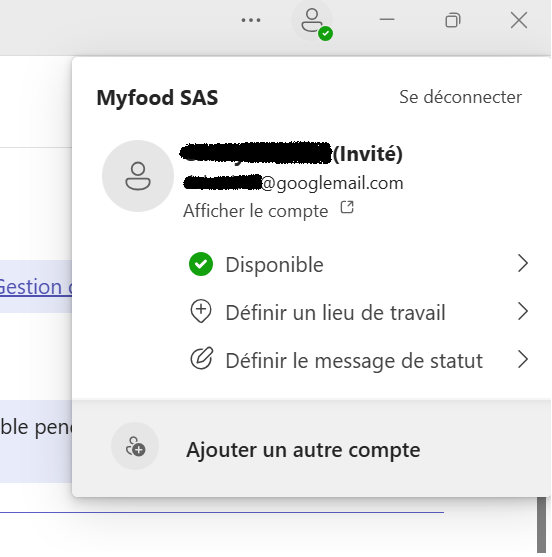
Sélecteur de compte Teams sur l'application Bureau Windows / Mac
3.4. Signing in through the Teams mobile app (iOS/Android)
-
Install the Teams app: Download Microsoft Teams from the App Store (iOS) or the Play Store (Android).
-
Sign in with the correct account: Enter the email address and password used when you accepted the original invitation.
-
Select the correct account type: If the app asks you to choose between a personal and work account, choose the same type as when you accepted the invitation.
-
Check the organization: Once signed in, make sure you are in the Myfood organization (visible in the profile menu).
Reminder: Never perform your first sign-in (invitation acceptance) from a mobile device. The mobile app is only for later sign-ins, once the invitation has been accepted from a computer.
4. Resolving common issues
4.1. Error “AADSTS50020 – User account does not exist in tenant Myfood”
Cause: You are using a different Microsoft account from the one used when accepting the invitation.
Solution:
-
Sign out of all your Microsoft sessions (browser, Teams app, Outlook, etc.).
-
Open a private browsing window.
-
Sign in, making sure that you use the email address AND the account type (personal/work) used when you accepted the original invitation.
4.2. I do not remember which account I used
If you no longer know which account type you used when accepting the invitation:
- First try with a personal account (if you have an Outlook/Hotmail/Live account)
- Then try with the work account (if your company uses Microsoft 365)
- As a last resort: Contact Myfood support to request a reset of your invitation.
4.3. The mobile app is not working
- Clear the app cache: Go to Settings > Apps > Teams > Clear cache.
- Uninstall and reinstall the app: This lets you start again with a clean configuration.
- Sign in again: Use the same credentials as when you accepted the original invitation.
4.4. Request a new invitation
If none of the solutions work, you can request a reset of your invitation through the Myfood support portal: https://sav.myfood.eu
This operation automatically cancels the previous invitation. You will need to restart the acceptance process with the same email address.
5. Summary of best practices
| ✅ TO DO | ❌ TO AVOID |
|---|---|
| Accept the invitation from a computer | Accept the invitation from a mobile device |
| Use a private browsing window | Accept with Microsoft sessions already open |
| Write down the email and account type used | Change account type at each sign-in |
| Always check the active account before accessing Teams | Mix up your different Microsoft accounts |
| Contact support if the issue persists | Create a new account without requesting a new invitation |
Need help? Contact Myfood support